Cast VLC to Chromecast: Setup, Formats and Troubleshooting
Cast VLC to Chromecast with built-in Renderer support. Step-by-step setup for Windows, Mac, and Android, plus fixes for "no renderer found".
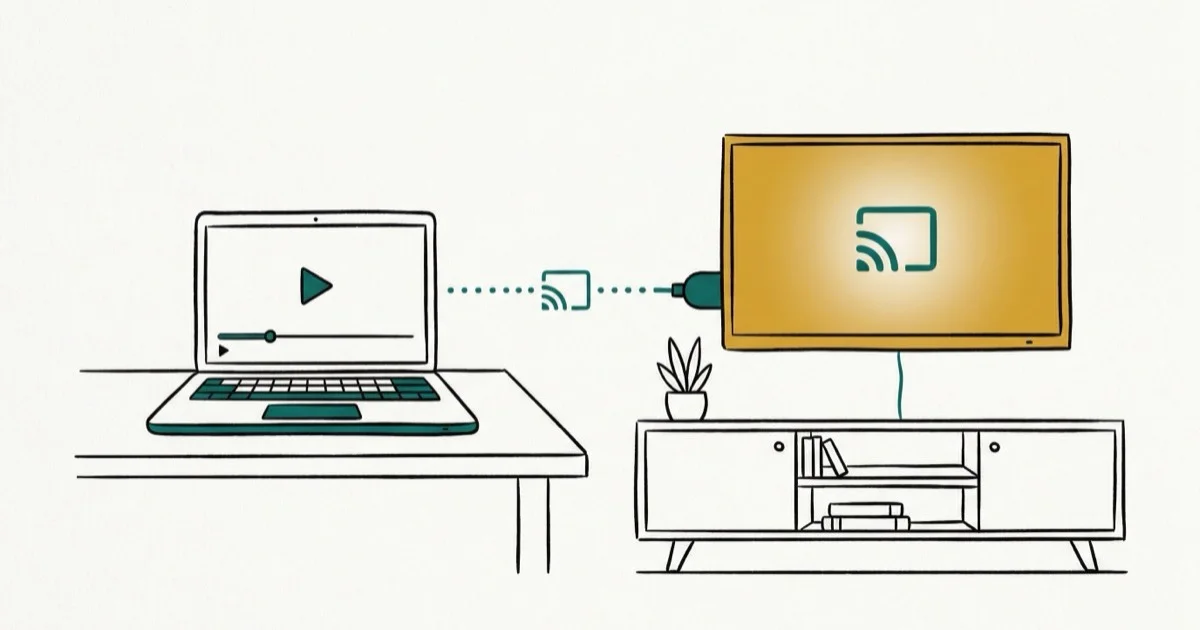
Quick AnswerOpen VLC 3.0 or later, choose Playback then Renderer, and pick your Chromecast. Both devices must share the same Wi-Fi, and VPNs need to be off while casting.
Casting VLC to Chromecast turns any laptop or Android phone into a remote for the TV without uploading files anywhere. The workflow is mostly identical across platforms once a few quirks are sorted, as long as VLC and the Chromecast are on the same local network.
- VLC 3.0 or later is required for Chromecast support, since earlier builds don’t expose the Renderer entry under the Playback menu at all.
- Both devices must sit on the same 2.4 GHz or 5 GHz Wi-Fi SSID, and corporate or guest networks with client isolation will block discovery entirely.
- MP4 with H.264 or H.265 plays directly, while MKV, AVI, and FLAC usually trigger VLC’s on-the-fly transcoding, which spikes CPU usage on older laptops.
- VLC for iPad and iPhone still doesn’t include native Chromecast support, so AirPlay or screen mirroring is the only workaround on Apple mobile devices.
- Audio drift of one to two seconds is common over Chromecast, but the Track Synchronization tool in Tools then Track Synchronization fixes it in real time.
#What Do You Need Before Casting VLC to Chromecast?
VLC’s Chromecast support landed in version 3.0, released in February 2018, and every later build keeps the same Renderer menu. According to the VideoLAN 3.0 release notes, version 3.0 added the Chromecast output module based on libmicrodns and introduced 360-degree video and HDR support in the same release.
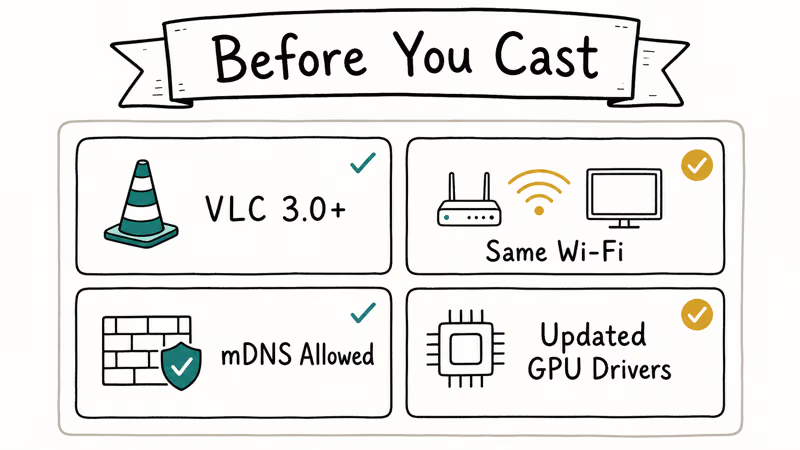
Anything older than that won’t show the Renderer option because the underlying mDNS discovery code isn’t there in 2.x builds.
You also need a Chromecast that’s already paired to your TV through the Google Home app, plus both devices on the same network. The Google Chromecast Help page recommends a strong dual-band Wi-Fi connection for stable casting from a computer, and keeping the Chromecast within range of the router helps too.
Active VPNs can hide the Chromecast from discovery by routing multicast traffic through the tunnel. Guest Wi-Fi and office SSIDs with AP isolation can block local device-to-device traffic too.
#Confirming your VLC version
Open VLC, then choose Help and About on Windows, or VLC media player and About VLC on macOS. Anything starting with 3 will work. If you’re still on 2.x, grab the current build straight from the official VideoLAN download page rather than a third-party mirror that might bundle adware.
#How to Cast VLC to Chromecast on Windows
The Windows workflow is the cleanest. Launch VLC, then use Media and Open File to load the video. From the main menu choose Playback, hover over Renderer, and wait two to three seconds for VLC to scan the local network with mDNS. The scan uses local multicast packets to find any Chromecast on the subnet, including units that don’t show up in the Google Home app’s device list until you refresh it manually a couple of times.
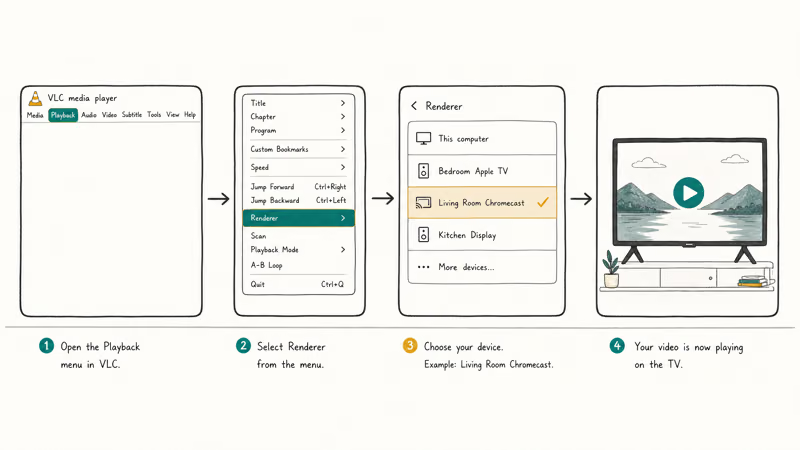
Pick your Chromecast from the dropdown. Done.
The first time you connect, VLC throws an “Insecure site” certificate warning because it generates a local self-signed cert for the Chromecast handshake. Click View Certificate, then Accept Permanently. The prompt won’t return.
If the device list stays empty, click the Scan button at the bottom of the Renderer submenu. Firewall blocking is a common reason VLC can’t discover a Chromecast on Windows. Allow VLC through both Private and Public profiles in Windows Security, then scan again.
#How to Cast VLC to Chromecast on Mac
On macOS the menu lives in the Apple-style menu bar at the top of the screen. After opening a file through File and Open File, click Playback, hover over Renderer, and select your Chromecast. Pick carefully if you have more than one cast target paired to the same Apple ID, because VLC doesn’t deduplicate the same physical device twice when AirPlay and Chromecast both surface it under similar names.
When VLC casts from a Mac, unsupported formats may force real-time CPU transcoding, which can heat the laptop and increase power use during long playback sessions.
Plug in power for long sessions, and keep the laptop on a hard surface so the bottom vents stay clear.
The “Insecure site” warning appears once per Chromecast on macOS too. Accept it permanently. macOS 13 Ventura and later sometimes need an extra Local Network permission grant the first time, prompted automatically by the OS through System Settings.
#How to Cast VLC to Chromecast on Android
VLC for Android has had Chromecast support since version 3.0 in 2018. The casting button is much more visible than on desktop. Open the VLC app, browse to your video, and tap the Cast icon in the top-right of the player toolbar.
The list shows every cast target on the network, including Nest speakers and other Chromecast-built-in TVs. Pick the right one. Playback continues on the TV, and the phone becomes a remote with full transport controls, queue management, and subtitle switching, all without needing the screen unlocked once playback has started and the cast has handed off.
The phone still does any required transcoding work locally before pushing the stream to Chromecast, so long sessions can drain battery faster than ordinary playback.
#Supported Video Formats and Transcoding Behavior
Chromecast natively decodes a narrow list of codecs. Anything outside that list forces VLC into real-time transcoding, which is the single biggest cause of stutter and audio sync issues. According to the Google Cast supported media documentation, Chromecast devices natively decode H.264 High Profile up to level 4.2 on the 1st and 2nd-gen, VP8, VP9 on 3rd-gen and Ultra, and HEVC Main10 on Ultra and newer.
The practical breakdown looks like this in day-to-day use:
- MP4 (H.264 + AAC) usually plays directly with no transcoding on Chromecast models that support the codec.
- MKV (H.264/H.265 + AAC/AC3) sees video pass through, but the MKV container itself forces VLC to remux and sometimes transcode audio.
- AVI (DivX/Xvid + MP3) almost always triggers full transcoding because Chromecast doesn’t decode the legacy codecs.
- HEVC/H.265 works on Chromecast Ultra (2016) and Chromecast with Google TV, but the original 3rd-gen and earlier require VLC to transcode.
- VP9 is natively supported on 3rd-gen, Ultra, and Google TV models, so YouTube-style content streams cleanly.
When VLC transcodes, the encoding load lives entirely on the casting device. Newer computers handle more formats in real time, while older laptops may stutter if the file requires heavy conversion.
#Subtitle compatibility
VLC handles embedded subtitles inside MKV containers reasonably well, since soft subs in SRT or ASS format render on the TV without extra setup. External .srt files loaded through Subtitle and Add Subtitle File also work. PGS bitmap subtitles from Blu-ray rips often cause black-frame flashes during transitions, a known issue documented on the VideoLAN Chromecast wiki.
If you need to mix subtitles into the container before casting, our guide on how to use VLC to merge videos covers the relevant menus.
#How to Fix VLC Not Finding Chromecast?
The most common failure mode. The Renderer menu shows “Scan” forever or returns an empty list. Work through these fixes in order, since each one rules out a different layer.
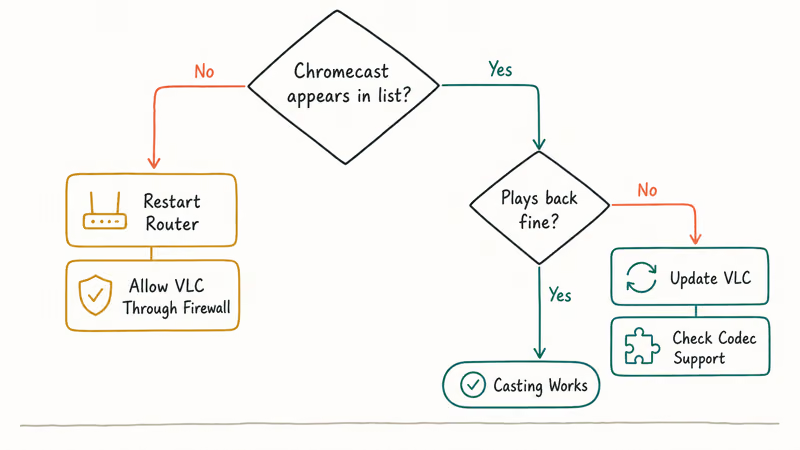
First, confirm the basics. Both devices must be on the same SSID, so check the Wi-Fi name on the Chromecast through Google Home and compare it to your computer’s connection. Disable any VPN, and turn off “Private Wi-Fi address” (called MAC randomization on Windows) for the duration of the session. Those three steps fix most cases.
Second, restart the discovery chain. Quit VLC fully, unplug the Chromecast for ten seconds, and reboot the router if the issue persists. The mDNS multicast cache that drives device discovery sometimes goes stale after weeks of router uptime, and a quick reboot clears it without changing any settings or losing any saved networks on attached devices.
Third, allow VLC through the firewall. On Windows, open Windows Security, click Firewall and network protection, then Allow an app through firewall, and tick both Private and Public for VLC. On macOS, open System Settings, choose Network, then Firewall, click Options, and add VLC with “Allow incoming connections” enabled. The VideoLAN VLC for macOS forum confirms that firewall blocking is the top cause reported in their support threads, with the same fix posted by moderators dozens of times.
Fourth, if the Chromecast still won’t appear, try opening a multicast network stream inside VLC. Use Media and Open Network Stream, then enter a placeholder address like rtp://@224.0.0.150
and click Play. This forces VLC to refresh its mDNS listener and frequently surfaces the missing Chromecast on the next Renderer scan.#Fixing Audio Sync and Black Screen Problems
Once casting works, the next two issues are audio drift and a black screen with audio. Both are fixable without leaving VLC.
For audio sync, open Tools then Track Synchronization on Windows and Linux, or Window then Track Synchronization on Mac. The Audio track synchronization field accepts negative values to push audio earlier or positive values to delay it.
Save the value as a global preset if every movie drifts by the same amount, since VLC otherwise resets the offset to zero on each new file load.
For the audio-only black screen, the culprit is almost always hardware-accelerated decoding fighting the casting pipeline. Disable it through Tools then Preferences, with the Show settings toggle on All, then drill into Input/Codecs and Video codecs and FFmpeg and set Hardware decoding to Disable. Restart VLC and re-cast, and the video should appear within seconds of pressing play.
If quality drops to a slideshow, the file is being transcoded harder than your CPU can handle. Drop the conversion quality through Tools, Preferences, Show All, Stream output and sout stream and chromecast, and lower the conversion-quality setting to “Low” or “Medium.”
This trades sharpness for stable playback and can help older laptops keep up with demanding 4K HEVC files.
#Other VLC features worth knowing
VLC’s casting is just one slice of what the player can do over a local network. Streaming raw network feeds, splitting an output to multiple files, and even playing YouTube videos backwards for editing-style review are all built into the same menus that drive the Renderer panel. If you’ve ever tried to identify an oddball file extension that won’t open, our BUP file player guide walks through using VLC to handle DVD-format archives.
#VLC Casting vs Plex vs Screen Mirroring
VLC isn’t the only path to your TV. Plex Media Server runs as a background service, indexes your library, and casts to Chromecast with a polished interface, but it requires keeping the server machine awake. According to the Plex Chromecast support page, Plex Media Server transcodes server-side when the client can’t handle the source codec.
Screen mirroring through Google Home casts your entire desktop to the Chromecast, which can add visible input lag.
For game-style content, casting from a PS4 via screen mirroring can show similar lag issues. Dedicated cast paths are usually better.
VLC’s casting sits between those two options. No library or media server overhead, no constant background process eating RAM, no Apple ID or Plex account dependencies. Transcoding happens only when needed, and the Renderer mode streams files directly without screen capture, which is usually lighter than full-screen mirroring.
For occasional viewing of local files, VLC wins. Plex or another Chromecast alternative is the better long-term choice for always-on home media setups.
For live content like Twitch or YouTube, casting from those apps’ built-in cast buttons is faster than routing through VLC. A separate guide covers casting Twitch to Chromecast. The same browser-tab casting trick works for almost any web video. For desktop users who prefer a different player entirely, our list of VLC alternatives compares the ones that ship with native Chromecast support.
#Bottom Line on Casting VLC to Chromecast
VLC’s Chromecast support is the easiest way to send local video files from a computer or Android phone to a TV without uploading to any cloud service. Update to VLC 3.0 or later, share one Wi-Fi network, accept the self-signed certificate, and most casting sessions just work on the first try.
Use MP4 with H.264 as the default container, and adjust Track Synchronization when audio drifts.
For longer-form viewing or a household with multiple TVs, a dedicated media server beats VLC on convenience. But for the “I just downloaded an MKV and want it on the big screen” use case, VLC remains the fastest free option once the firewall is sorted.
#Frequently Asked Questions
Can I cast VLC to Chromecast from an iPhone or iPad?
Not directly. VLC for iOS doesn’t include the Chromecast Renderer module that the desktop and Android versions ship with, mainly because of App Store restrictions on background networking. The workaround is AirPlay to an Apple TV, or screen mirroring through the Google Home app if you have a Chromecast with Google TV that supports it.
Why does VLC show an “Insecure site” warning when I start casting?
It’s a self-signed TLS certificate that VLC generates locally. Click View Certificate, then Accept Permanently. VLC stops asking.
Does VLC casting work with 4K and HDR content?
Yes, on a Chromecast Ultra or Chromecast with Google TV. Both support 4K HEVC playback natively, so H.265 MKV and MP4 files cast without transcoding if the encoder used Main or Main10 profile. Older Chromecast generations downscale 4K source to 1080p. The picture still looks acceptable on a 55-inch screen, but HDR metadata is dropped on the way through, so highlights look flatter than on the original source.
Why does my Android phone screen turn off and stop casting?
VLC for Android pauses transcoding when the screen locks on most Android 12 and later devices, because of stricter background process limits. Go to Android Settings then Apps then VLC then Battery, and set the battery mode to Unrestricted.
Can I cast a YouTube video from VLC to Chromecast?
Yes, but it’s roundabout. Open VLC, choose Media and Open Network Stream, paste the YouTube URL, and start playback. Send it to Chromecast through the Renderer menu. The YouTube app’s built-in cast button is faster.
What’s the difference between casting and screen mirroring?
Casting sends the media file itself to the Chromecast, which then decodes and plays it independently, so your computer can sleep or be used for other things. Screen mirroring duplicates your entire display to the TV, uses far more bandwidth and CPU, and locks the computer to whatever’s on screen. VLC’s Renderer mode is true casting, not mirroring, and saves a noticeable amount of laptop battery on long movies.
Can VLC cast to multiple Chromecasts at once?
No. VLC’s Renderer system supports one cast target at a time. To play the same video on multiple TVs, you would need to create a speaker group inside Google Home for audio-only casting, or use a media server like Plex that supports multi-room sync as a paid feature.
How do I stop casting from VLC?
Open Playback, hover over Renderer, and click Local. That switches playback back to your computer’s screen and ends the Chromecast session immediately.
Google Messages Error 3100: Why RCS Is Broken on Galaxy
Google Messages RCS error 3100 hits Galaxy owners after phone or carrier switches. Google told 9to5Google a fix is coming. Here's what actually helps.

Is This Bank App Real? Spot a Fake App on Your Home Screen
A bank app can land on your home screen from a web page with no install warning. Learn the checks that tell a real banking app from a phishing web app.
Apps Crashing After iOS 27 Update? Fix Order (2026)
Apps crashing after the iOS 27 update? Update the app in the App Store first, then offload and reinstall to clear stale cache, then restart. The fix order.
Do AI Translation Earbuds Work Offline? What to Know
Do AI translation earbuds work offline? A few do with downloaded language packs, but most need the cloud. Here's what works offline and what you give up.