How to Block Adult Websites on Google Chrome (2026)
Learn how to block adult websites on Google Chrome using SafeSearch, extensions, Family Link, DNS filtering, and system-level controls for full protection.

Quick AnswerThe fastest way to block adult websites on Chrome is to enforce Google SafeSearch and pair it with a content-filtering extension like BlockSite or uBlock Origin with adult filter lists enabled.
Blocking adult websites on Google Chrome takes more than one method to get right. Whether you’re setting up a family computer, managing a school Chromebook, or just cleaning up your own browsing, the strongest setup usually combines browser, account, device, and network controls.
Using these methods on devices or accounts you don’t own may violate applicable laws and platform terms, especially in schools, workplaces, or shared households where consent, written policy, and parent or administrator approval matter.
- Google SafeSearch filters explicit results from Search but doesn’t block direct URL access to adult sites
- Browser extensions like BlockSite and uBlock Origin with filter lists cover gaps SafeSearch misses
- Google Family Link lets parents manage Chrome content filtering on both mobile and desktop for kids under 13
- DNS-level filtering through CleanBrowsing or OpenDNS blocks adult content across every browser and app on a network
- Disabling Chrome’s Incognito Mode prevents users from bypassing extension-based filters
#How Does Google SafeSearch Block Explicit Content?
Google SafeSearch filters sexually explicit results from Google Search. It won’t block adult websites directly, but it’s your first line of defense.
To lock SafeSearch on, go to google.com/preferences. Check Turn on SafeSearch, then click Lock SafeSearch and sign in with your Google account.
Locked SafeSearch applies to Google Search, but it does not replace device-level or network-level blocking.
Here’s the catch.
SafeSearch only affects Google Search results. If someone types an adult site URL directly into Chrome’s address bar, SafeSearch won’t stop it. You need additional layers to cover that gap.
Google’s SafeSearch help page confirms that SafeSearch has 3 settings (Filter, Blur, and Off), and that even Filter mode can still surface explicit text and links if they’re relevant to your search. Pair it with at least one other method from this guide.
#Chrome Extensions for Content Blocking
Extensions give you URL-level blocking right inside Chrome. Two stand out.
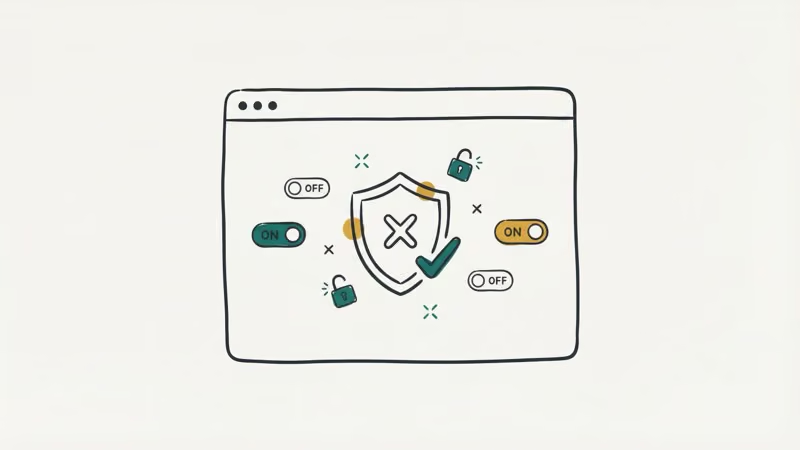
BlockSite lets you add specific URLs to a blocklist or enable its adult content filter with one toggle. Its Chrome Web Store listing also describes password protection so others can’t just uninstall it.
After installing uBlock Origin, open the dashboard and enable filter lists such as:
- EasyList
- Peter Lowe’s Ad and tracking server list
- Fanboy’s Adult/Dating filter (under “Multipurpose”)
That third list specifically targets adult domains. According to uBlock Origin’s wiki, the extension processes filter rules locally without sending your browsing data anywhere.
One warning: determined users can remove extensions. Keep reading for ways to lock that down.
#Google Family Link for Chrome on Phones and Computers
Google Family Link is built for parents managing a child’s account. It works on Android, iPhone, Chromebook, and Chrome browser on any desktop where the child signs in with their supervised Google account.
Start by installing Family Link on your phone and creating a supervised account for your child.
Sign into Chrome on the child’s device with that account, then open Family Link and go to Controls > Content restrictions > Google Chrome. Choose Only allow approved sites or Block mature sites.
Family Link also locks SafeSearch on automatically for supervised accounts.
Family Link restrictions apply to supervised Google accounts across supported devices after the settings sync. If you’re looking for other ways to keep kids safe on apps, Family Link covers those too.
#DNS Filtering: Block Adult Content Network-Wide
DNS filtering works at the network level. It catches every browser, every app, every device connected to your Wi-Fi.
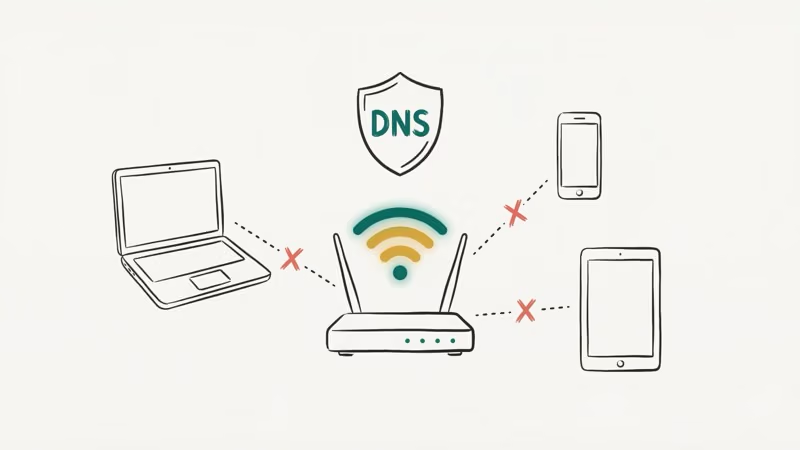
Two free options:
CleanBrowsing offers a Family Filter at 185.228.168.168 and 185.228.169.168. As CleanBrowsing’s documentation states that these DNS servers block adult content, phishing, and malware domains automatically. No signup or account needed.
OpenDNS FamilyShield uses 208.67.222.123 and 208.67.220.123. Cisco’s OpenDNS support page confirms that FamilyShield “provides the same protection as the Home with a pre-configured setting to block adult content.”
To set either one up on your router, log into the admin panel (usually 192.168.1.1), find DNS settings under WAN or Internet, swap in the addresses above, and reboot. Every device on your network now filters adult content automatically after this five-minute change.
Done.
This pairs well with a parental control router for even tighter restrictions. If you run into connectivity issues after changing DNS, our guide on fixing DNS probe errors can help.
#Windows and macOS System-Level Controls
Operating system filters work underneath Chrome. They can’t be bypassed by switching browsers.
Windows Family Safety works through Microsoft accounts. Open Settings > Accounts > Family & other users, add your child’s Microsoft account, then visit family.microsoft.com. Under Content filters > Web and search, turn on Filter inappropriate websites. This blocks adult sites in both Edge and Chrome.
macOS Screen Time takes a different approach.
Go to System Settings > Screen Time > Content & Privacy, turn on Content & Privacy Restrictions, and set Web Content to Limit Adult Websites. This filter applies across Safari, Chrome, and Firefox simultaneously.
System-level blocking is much harder to get around than browser extensions alone, and both platforms let you add custom blocked URLs for anything the built-in filters miss.
#How Do You Disable Incognito Mode in Chrome?
Incognito Mode is the biggest loophole. Extensions don’t run there unless you manually enable each one.
On Windows, open Registry Editor by pressing Win+R and typing regedit. Go to HKEY_LOCAL_MACHINE\SOFTWARE\Policies\Google\Chrome, create a new DWORD value named IncognitoModeAvailability, and set its value to 1.
On macOS, open Terminal and run:
defaults write com.google.Chrome IncognitoModeAvailability -integer 1Restart Chrome. The Incognito option vanishes from the menu entirely, keeping your extensions active for every single browsing session no matter what.
If Chrome starts acting up after registry changes, our Chrome performance guide walks through fixes. These tweaks don’t affect Chrome’s normal browsing speed or functionality.
#Chrome Enterprise Policies for Schools and Organizations
Schools and IT departments can push Chrome policies across hundreds of devices at once.
Through Google Admin Console, admins can:
- Force SafeSearch on for all managed Chrome browsers
- Block specific URLs or entire categories
- Disable Incognito Mode fleet-wide
- Prevent users from installing or removing extensions
- Lock homepage and new tab page settings
Google’s Chrome Enterprise documentation outlines the full list of over 500 policies available. For schools using Chromebooks, these policies deploy automatically when students sign in.
This isn’t practical for home use. But if you manage devices for a school or office, it’s the most thorough option.
#Combining Methods for Stronger Protection
No single method blocks everything.
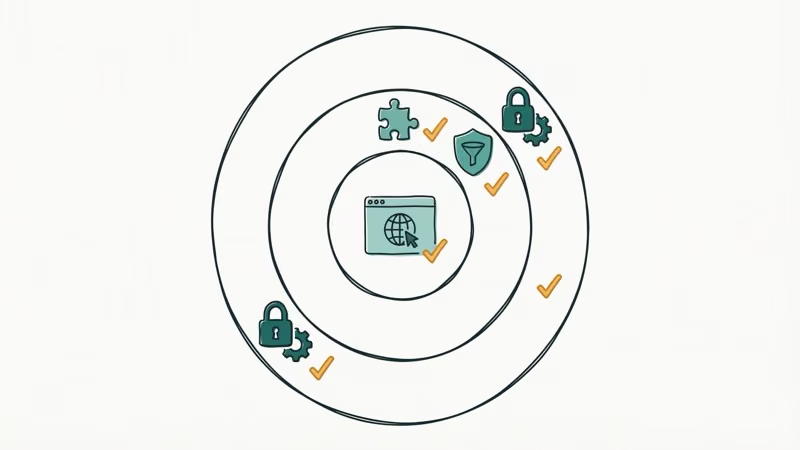
For young kids (under 13), the best combo is Google Family Link plus CleanBrowsing DNS plus disabling Incognito Mode. Three layers with almost no ongoing maintenance required from you.
For teens, skip Family Link and go with DNS filtering, uBlock Origin with adult filter lists, and Incognito disabled. Teens will try harder to get around blocks, so DNS-level protection matters more than browser-only tools. You might also want to disable the ability to install VPN extensions.
For shared family computers, use BlockSite with a password, Windows Family Safety or macOS Screen Time, and SafeSearch locked on. For schools, Chrome Enterprise policies plus network-level DNS filtering covers everything.
Our guides on blocking adult content on iPhone and Android go deeper into mobile-specific settings.
And if your Chrome bookmarks vanish after a settings change, here’s how to get them back.
#Bottom Line
Blocking adult websites on Google Chrome works best when you stack multiple methods together. Start with SafeSearch, add an extension or DNS filter, and disable Incognito Mode to close the biggest loophole. For kids, Google Family Link handles most of the heavy lifting. For network-wide protection, DNS filtering through CleanBrowsing or OpenDNS takes about five minutes and covers every device in your home.
No filter catches everything. Check in periodically, update your block lists, and keep the conversation going with your family about safe browsing habits.
#Frequently Asked Questions
Does SafeSearch block all adult websites on Chrome?
No. SafeSearch only filters explicit results from Google Search. It won’t stop someone from typing an adult website URL directly into Chrome’s address bar, so you need extensions or DNS filtering to block direct access to those sites.
Can my child turn off content blocking extensions?
Yes, if they can access Chrome’s extension settings. Use password-protected extensions like BlockSite, or combine extensions with DNS filtering that can’t be changed from inside the browser.
Is DNS filtering better than browser extensions?
They solve different problems. DNS filtering blocks adult content across every app and browser on your entire network, not just Chrome. Extensions give you finer control over specific URLs and categories within Chrome itself. The strongest setup uses both together because DNS catches what extensions miss, and extensions provide more granular blocking rules that DNS servers don’t offer.
Will blocking methods slow down Chrome?
No. uBlock Origin actually speeds up browsing by blocking ads and trackers. DNS filtering and BlockSite have minimal performance impact.
How do I block adult content on Chrome for Android?
Install Google Family Link and set up a supervised account for your child. For a quicker alternative, change your phone’s DNS settings to CleanBrowsing’s Family Filter by going to Settings > Network & Internet > Private DNS and entering family-filter-dns.cleanbrowsing.org. This works on any Android phone running version 9 or later without needing to install anything.
Can someone bypass these blocks using a VPN?
Yes. A VPN routes traffic through an encrypted tunnel, bypassing both DNS filtering and most browser extensions. To counter this, combine DNS filtering with device-level controls like Windows Family Safety or macOS Screen Time. On managed Chromebooks, Chrome Enterprise policies can block VPN extensions from being installed in the first place.
Do these methods work on Chromebooks?
Every method in this guide works on Chromebooks. Family Link and Chrome Enterprise policies are especially effective since Chromebooks run Chrome OS natively.
What’s the difference between BlockSite and uBlock Origin?
BlockSite is the easier option. It has a one-toggle adult content filter and built-in password protection. uBlock Origin is far more powerful but requires manual setup: you’ll need to enable specific filter lists in the dashboard. uBlock Origin covers millions more domains through community-maintained lists, making it the better choice if you want thorough filtering and don’t mind spending five minutes on configuration.

Google Messages Error 3100: Why RCS Is Broken on Galaxy
Google Messages RCS error 3100 hits Galaxy owners after phone or carrier switches. Google told 9to5Google a fix is coming. Here's what actually helps.

Is This Bank App Real? Spot a Fake App on Your Home Screen
A bank app can land on your home screen from a web page with no install warning. Learn the checks that tell a real banking app from a phishing web app.

Apps Crashing After iOS 27 Update? Fix Order (2026)
Apps crashing after the iOS 27 update? Update the app in the App Store first, then offload and reinstall to clear stale cache, then restart. The fix order.

Do AI Translation Earbuds Work Offline? What to Know
Do AI translation earbuds work offline? A few do with downloaded language packs, but most need the cloud. Here's what works offline and what you give up.