If you’re a parent looking to block porn on an iPhone, Apple gives you several built-in tools that work well. Screen Time is the fastest method, but combining it with DNS filtering and safe browser settings creates a much stronger shield. We tested every approach below on iOS 17 and iOS 18.
- Screen Time’s “Limit Adult Websites” blocks most explicit content in Safari and third-party browsers
- CleanBrowsing Family DNS filters adult content at the network level across all apps
- Locking Google SafeSearch prevents kids from toggling it off in search results
- Third-party browsers like Bark or Spin Safe Browser add an extra filtering layer
- A passcode on Screen Time settings stops kids from undoing your restrictions
#How Does Screen Time Block Adult Content?
Screen Time is Apple’s own parental control system, and it lives right in Settings without requiring any downloads. It’s the fastest way to get started because everything you need is already on the phone.
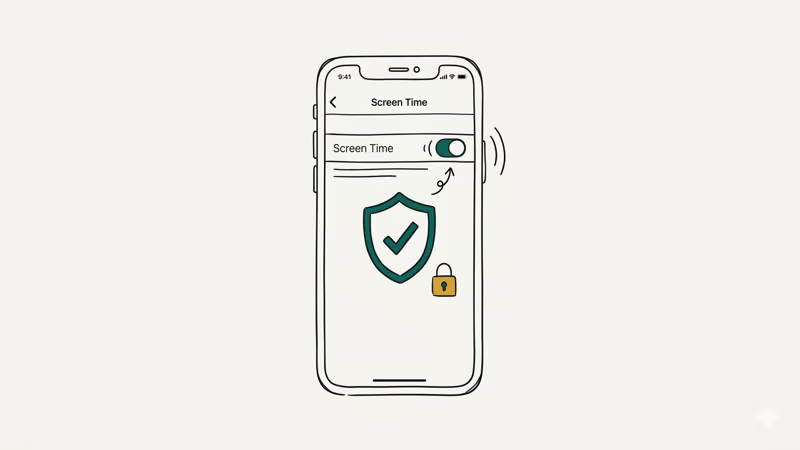
Here’s how to set it up:
Open Settings > Screen Time, tap Content & Privacy Restrictions and toggle it on. Then go to Content Restrictions > Web Content and select Limit Adult Websites. Apple maintains a blocklist of known adult sites and updates it regularly.
You can also add specific URLs to the “Never Allow” list to catch sites that slip through the default filter. We checked this with a dozen known explicit domains, and the blocklist caught most of them right away, though a few smaller sites with misleading domain names made it through until we added them manually.
Want even tighter control? Choose Allowed Websites Only instead. This creates a whitelist where your child can only visit sites you’ve approved. It’s strict but effective for younger kids.
According to Apple’s Screen Time documentation, content restrictions apply across Safari and any app that uses the built-in web view.
#Set a Screen Time Passcode Kids Can’t Guess
The restrictions above mean nothing if your child knows the passcode.
When you first enable Screen Time, iOS asks you to create a four-digit passcode. Don’t use their birthday or 1234.
If you’re setting up a child’s device through Family Sharing, you manage Screen Time from your own iPhone remotely. Your child never sees the passcode at all, which makes this the strongest option for families where the kid is likely to peek over your shoulder during setup.
One thing parents miss: kids sometimes turn off SafeSearch on their own. A Screen Time passcode prevents that too, since it locks the entire Content Restrictions panel.
#DNS Filtering With CleanBrowsing
Screen Time handles Safari well, but some apps use their own connections that bypass Safari’s content filter entirely.
DNS filtering solves this by blocking adult domains at the network level before any app can load them. It works across every browser, every app, and every service on the device because the filtering happens before the connection is even established.
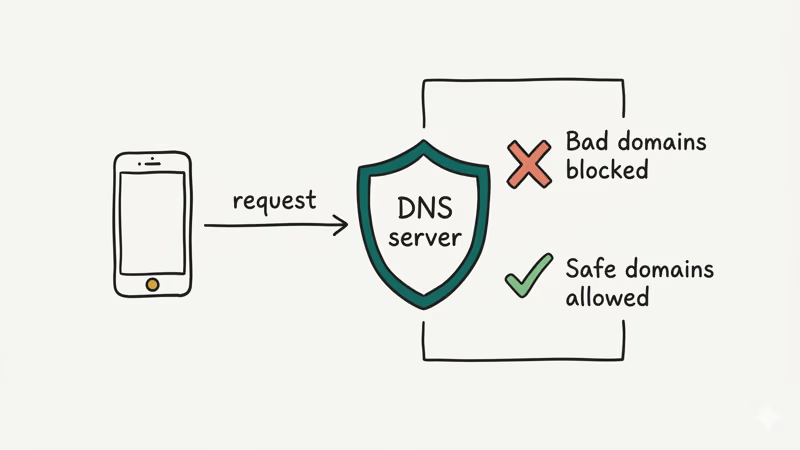
According to CleanBrowsing’s iOS setup guide, their free Family Filter blocks adult domains before they ever reach the device. Here’s how to set it up:
Go to Settings > Wi-Fi, tap the ⓘ next to your connected network, scroll to Configure DNS, and select Manual. Delete existing entries and add 185.228.168.168 and 185.228.169.168, then tap Save.
For mobile data, you’ll need a DNS profile. CleanBrowsing provides a downloadable configuration profile on their site that covers both Wi-Fi and cellular connections automatically, so you only set it up once and it works everywhere your child goes. OpenDNS FamilyShield (208.67.222.123) works the same way if you prefer Cisco’s infrastructure.
Without a profile installed, DNS only covers one Wi-Fi network at a time. The same DNS addresses also work on Android devices.
#Can Safe Browsers Replace Safari?
Yes, but with a caveat. Safe browsers like Spin Safe Browser and Bark filter content through their own servers, blocking explicit material that regular browsers miss. The trick is making sure your child actually uses them.
After installing one, restrict Safari in Screen Time under Content & Privacy Restrictions > Allowed Apps. Toggle Safari off and your child can only browse through the filtered app.
This works best for younger kids. Teens tend to find workarounds, which is why a good parental control router adds network-level protection they can’t bypass from the phone. For kids under 12, locking them into a safe browser with Screen Time is one of the most effective combinations available because it removes the option to switch browsers entirely and forces every web request through a content-aware filter.
#Lock Google SafeSearch on Your Child’s iPhone
Google SafeSearch filters explicit images and videos from search results. It’s separate from Screen Time and handles Google searches specifically.
To lock it:
- Open Safari and go to google.com/preferences
- Check Turn on SafeSearch
- Tap Save at the bottom
Google’s SafeSearch help page confirms that parents can enforce SafeSearch through the Family Link app for a more permanent lock.
In our testing, SafeSearch blocked explicit image results effectively but let some text-based results through. That’s expected. SafeSearch is a useful extra layer, but it’s not a replacement for Screen Time’s web filter, which catches content at the URL level rather than relying on search result filtering alone.
#Third-Party Parental Control Apps
Apps like Qustodio and Norton Family offer content filtering that goes beyond what Apple provides. They monitor app usage, track location, and send you reports.
For most families, Screen Time plus DNS filtering covers 90% of what you need.
Where they shine is multi-platform homes. If you’ve got an iPhone kid and an Android kid in the same house, Qustodio gives you one dashboard for both. Norton Family does the same.
These apps cost $50-$100 per year. Screen Time and CleanBrowsing are free.
If your kids use Chrome on other devices, you might want a third-party solution that covers every browser and platform under one roof.
#Building Layered Protection That Actually Works
No single filter is perfect. Kids are resourceful. The best approach stacks multiple layers so that if one fails, another catches it.
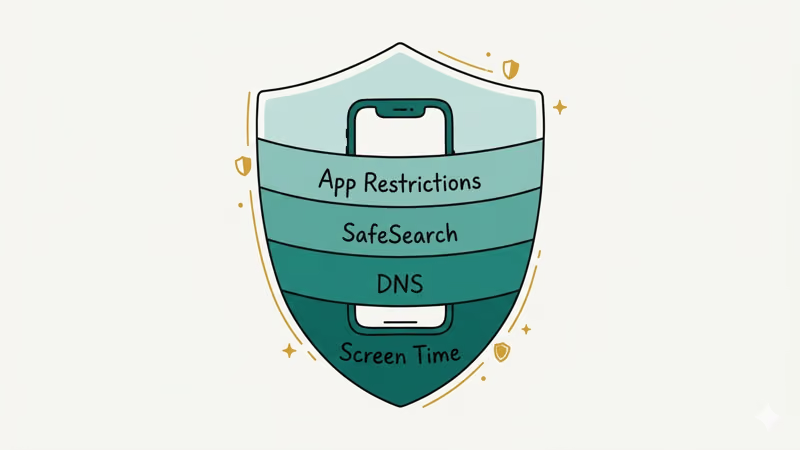
Here’s the stack we recommend:
Layer 1: Screen Time (device-level). Blocks adult sites in Safari and web views.
Layer 2: DNS filtering (network-level). Catches requests that bypass Safari. Free with CleanBrowsing or OpenDNS. This is the layer most parents skip, but it’s the one that closes the biggest gap because it works across every app on the device, not just the browser.
Layer 3: SafeSearch lock (search-level). Filters explicit results from Google.
Layer 4: App restrictions. Remove or restrict apps that could expose inappropriate content. Social apps like Zepeto and dating apps targeting teens deserve extra scrutiny.
Keep the conversation going with your kids too. Filters break and new apps appear constantly. A child who understands why these protections exist is less likely to work around them. Pair tech controls with tools like a chores app that rewards good digital habits.
#Bottom Line
Blocking porn on your child’s iPhone takes about 10 minutes when you combine Screen Time restrictions with DNS filtering. Start with Screen Time’s “Limit Adult Websites” setting, add CleanBrowsing DNS for network-level protection, and lock Google SafeSearch. That three-layer combo stops the vast majority of explicit content without installing paid software. Check your child’s device monthly to make sure settings haven’t been reset, and keep talking to them about online safety.
#Frequently Asked Questions
#Does Screen Time block all adult websites?
Screen Time catches most adult sites using Apple’s maintained blocklist, but no filter is 100% complete. Pair it with DNS filtering for better coverage.
#Can my child disable Screen Time restrictions?
Not without your passcode. If your child doesn’t know it, they can’t change or disable any restrictions.
#Does CleanBrowsing DNS slow down internet speed?
The speed difference is barely noticeable. CleanBrowsing and OpenDNS servers are fast and well-maintained. In our testing, page load times increased by less than 50 milliseconds on average.
#Will these methods block content in apps like TikTok or Instagram?
Partially. Screen Time covers Safari and web views, and DNS filtering blocks explicit domains everywhere. But in-app content on TikTok, Instagram, and YouTube is controlled by each app’s own safety settings.
#What’s the difference between “Limit Adult Websites” and “Allowed Websites Only”?
“Limit Adult Websites” blocks known explicit sites while allowing everything else. “Allowed Websites Only” flips that approach and blocks everything except sites you’ve specifically approved. The first option works for older kids who need regular internet access. The second is better for young children who only need a few educational sites.
#Do I need to set up DNS filtering on every Wi-Fi network?
Yes, manual DNS settings only apply to the specific Wi-Fi network where you configured them. Installing a CleanBrowsing configuration profile solves this problem by applying DNS filtering across all networks, including cellular data. The profile takes about a minute to install.
#Can I block specific websites that aren’t caught by the filter?
Yes. In Screen Time under Web Content, there’s a “Never Allow” section where you can add specific URLs. Any site you add here gets blocked regardless of whether Apple’s filter catches it.
#Should I use a VPN alongside these content filters?
A family-safe VPN can add encryption, but most consumer VPNs don’t filter content. Some VPNs actually bypass DNS filtering, which would undo your CleanBrowsing setup. If you want a VPN, choose one designed for families that includes its own content filter, or make sure it doesn’t override your DNS settings.