Fix "Restricted Access Changed" on Android (6 Ways)
Keep getting the Restricted Access Changed notification on Android? Try network resets, SIM checks, APN updates, and carrier support steps safely.
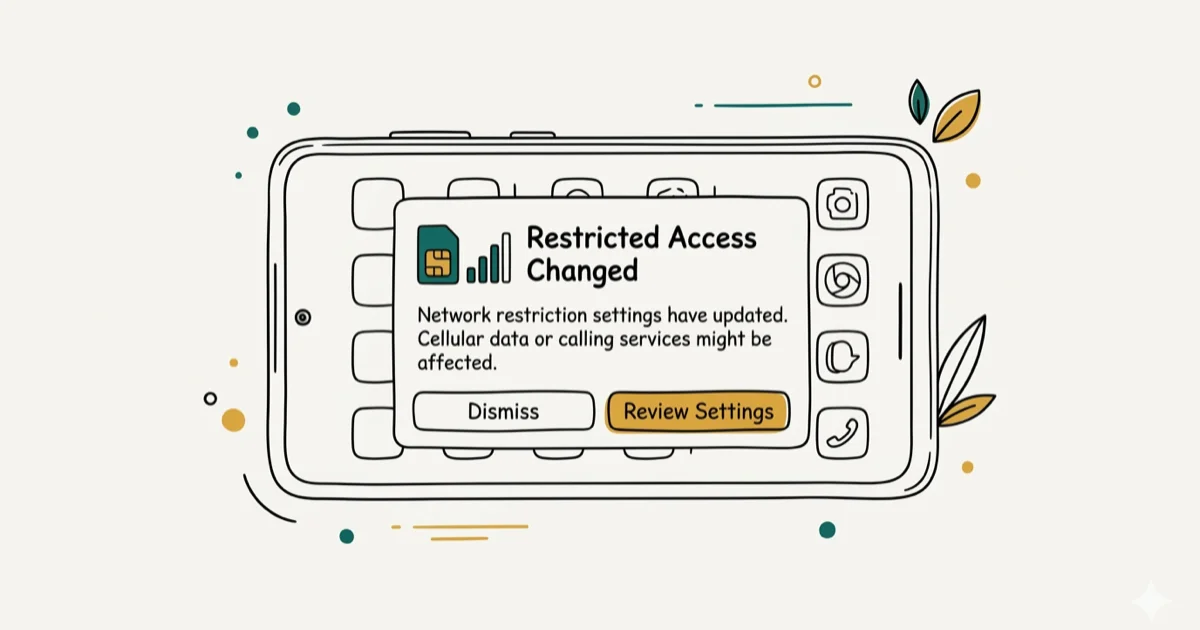
Quick AnswerThe Restricted Access Changed notification means your Android phone temporarily lost its cellular signal. Dismiss the notification, then toggle Airplane Mode on and off to force a fresh network connection. If it keeps appearing, reset your network settings via Settings > System > Reset options > Reset Wi-Fi, mobile, and Bluetooth.
The “Restricted Access Changed” notification on Android pops up when your phone loses its connection to a cell tower and then reconnects. It’s not a virus, not a hack, and not something you did wrong. These fixes target common cellular, SIM, and carrier-configuration causes across Android phones.
Before changing these settings, use the steps only on your own device, computer, or account, or with explicit permission from the owner. Unauthorized access can violate law, privacy rights, and platform terms, so don’t use this guide to bypass someone else’s controls. When available, start with the official support option, built-in settings menu, or vendor documentation before trying manual fixes, especially if the device or account belongs to work, school, or another person.
- The notification is triggered by temporary cellular signal loss, not by malware or a security breach
- Toggling Airplane Mode on and off forces a clean reconnection to cell towers
- A loose or damaged SIM card is the most overlooked physical cause of this error
- Resetting network settings clears corrupted APN configurations without deleting personal data
- Contacting your carrier is the right move if the notification keeps appearing after basic fixes
#What Does “Restricted Access Changed” Mean?
This notification tells you that your phone’s access to cellular services changed. That sounds scary, but it’s almost always harmless.
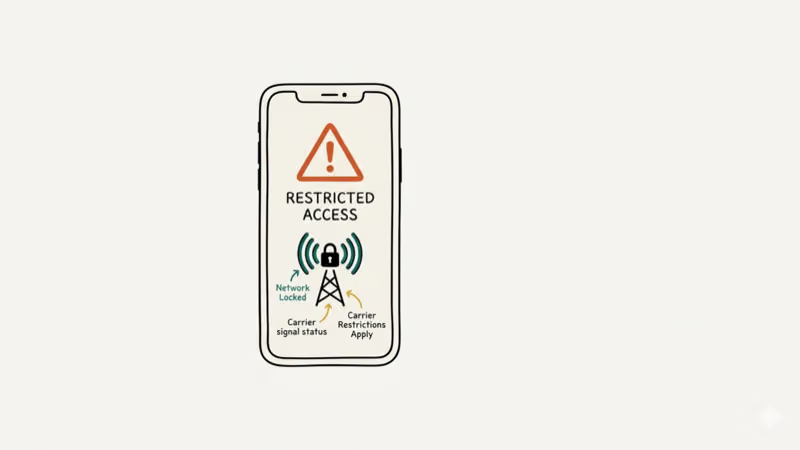
Your phone constantly communicates with nearby cell towers. When that connection drops and reconnects, Android generates this notification to log the event. Google’s developer reference confirms that Android uses 4 registration states, and “restricted” means the phone temporarily couldn’t register with the network for voice or data services.
The most common triggers are weak signal areas, switching between cell towers while driving, and brief carrier outages. If you’re seeing other connectivity issues like your phone not connecting to Wi-Fi, the problem might be broader than just cellular. The notification itself doesn’t affect your phone’s functionality at all.
#1. Dismiss and Ignore (When It’s a One-Time Event)
If you’ve only seen this notification once or twice, you probably don’t need to fix anything.
Swipe it away. Your phone already reconnected to the network by the time you read the notification. Check your signal bars at the top of the screen. If you have 2 or more bars and can make a call, everything is working fine and the notification was just Android being overly informative about a brief signal blip.
#How Do You Stop “Restricted Access Changed” From Appearing?
If the notification keeps coming back multiple times a day, try these fixes in order from quickest to most involved.
Toggle Airplane Mode. Open Settings, turn on Airplane Mode, wait briefly, then turn it off. This kills all radio connections and forces your phone to register with cell towers from scratch. It’s the quickest first step for a brief registration glitch.
Restart your phone. Hold the Power button, tap Restart, and wait for the phone to boot back up. A restart clears temporary memory and reloads all network services. If you’re also running into issues like Android System UI crashing or android.process.acore stopping, a restart handles those too.
#3. Check Your SIM Card
A loose, dirty, or damaged SIM card is one of the most overlooked causes of the Restricted Access Changed notification.
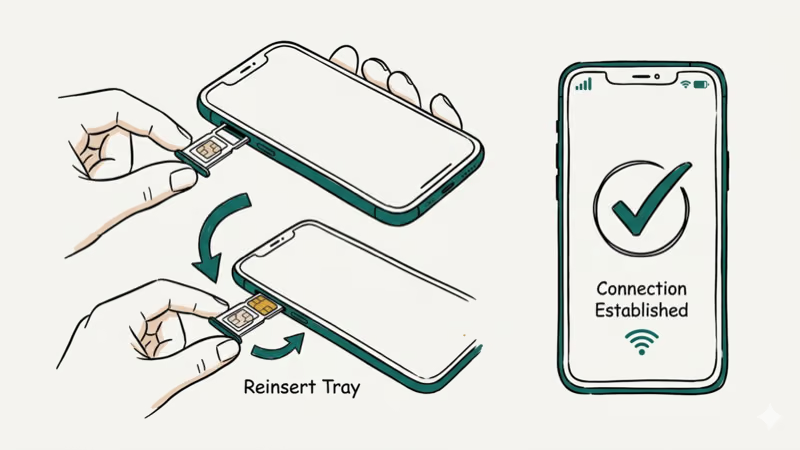
Power off your phone and use the SIM ejector tool (or a paperclip) to remove the tray. Reseating the SIM card can help when the notification keeps recurring. Inspect the card for scratches or bent contacts, clean the gold contacts with a dry microfiber cloth, reinsert it firmly, and power back on.
If the SIM card looks physically damaged, visit your carrier’s store for a free replacement. Most carriers like T-Mobile, AT&T, and Verizon will swap it at no charge. According to T-Mobile’s SIM card support page, you can also order a replacement SIM online and activate it yourself.
#4. Reset Network Settings
This clears all saved Wi-Fi networks, Bluetooth pairings, and mobile network configurations including APN settings. It’s the most effective fix for recurring Restricted Access Changed notifications caused by corrupted network profiles.
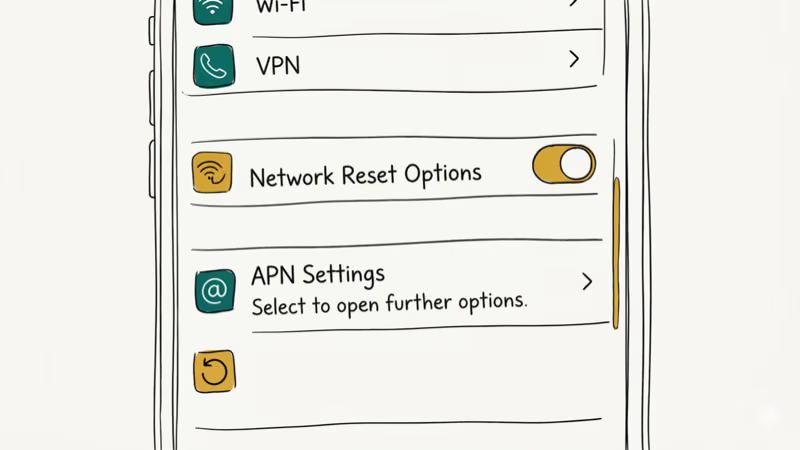
Go to Settings > System > Reset options > Reset Wi-Fi, mobile, and Bluetooth. On Samsung, it’s Settings > General management > Reset > Reset network settings.
After the reset, your phone will reconnect to your carrier’s network using default APN settings. You’ll need to re-enter all your Wi-Fi passwords, so make sure you have them written down before proceeding. According to Samsung’s reset guide, you can reset Wi-Fi, Bluetooth and mobile network settings on their own, and that reset won’t erase your apps or data.
#5. Update APN Settings
APN (Access Point Name) settings tell your phone how to connect to your carrier’s data network. According to Google’s APN configuration guide, incorrect or outdated APN settings can cause repeated signal drops that produce error notifications like Restricted Access Changed.
Go to Settings > Network & internet > SIMs > Access Point Names. On Samsung, the path is Settings > Connections > Mobile networks > Access Point Names instead.
Tap the three-dot menu and select Reset to default. This restores your carrier’s recommended APN configuration. If the option isn’t available, contact your carrier for the correct values. APN misconfigurations can also cause issues like Google Play Services errors since many Google services depend on a properly configured data connection.
#6. Contact Your Carrier
If you’ve tried everything above and the notification still appears multiple times daily, the problem is likely on your carrier’s end.
Call your carrier’s support line or visit a store. Ask them to check whether there’s a tower issue in your area and whether your account has any network restrictions. They can also reprovision your SIM card remotely, which refreshes your phone’s connection to their network without needing a physical SIM swap.
Carrier-side issues pop up after network upgrades. When carriers shut down 3G towers, some phones lose connectivity until coverage stabilizes. If you’re also getting Wi-Fi authentication errors, that points to your phone’s radio hardware rather than the carrier.
#Bottom Line
The Restricted Access Changed notification means your phone briefly lost cellular signal. Toggle Airplane Mode to force a fresh connection, check your SIM card for physical damage, and reset network settings if it keeps recurring. If none of those work, your carrier can check for tower issues or reprovision your SIM remotely. This notification isn’t a security threat.
#Frequently Asked Questions
Is “Restricted Access Changed” a sign of hacking or malware?
No. It’s a standard Android notification about cellular signal loss. It has nothing to do with security breaches, unauthorized access, or malware.
Why do I keep getting this notification every day?
Repeated notifications usually mean you’re in an area with weak or inconsistent cell coverage, your SIM card is loose or damaged, or your APN settings are misconfigured. Try the SIM card and network reset fixes described above. If it keeps coming back, contact your carrier because there might be a tower issue in your specific area that they can verify on their end.
Will a factory reset fix this notification?
It can, but it’s overkill. A factory reset wipes everything on your phone. Try resetting just network settings first since it fixes the same underlying problem without touching your apps or data. Only consider a factory reset as an absolute last resort after you’ve tried every other method and consulted with your carrier.
Does this notification affect my ability to make calls or use data?
No. By the time you read it, your phone has already reconnected. If you can’t actually make calls, that’s a separate issue from the notification.
Can a new SIM card fix this problem?
Yes, if your current SIM card is the cause. Damaged, dirty, or improperly seated SIM cards trigger frequent signal drops that produce this notification. Visit your carrier for a free replacement. On phones that support eSIM, switching from a physical SIM to eSIM eliminates the physical connection as a failure point entirely.
Does this happen on all Android phones?
Yes. It can appear on many Android phones because the cause is cellular connectivity related, not brand-specific. Any phone that connects to cell towers can produce this notification when signal quality fluctuates, regardless of whether you’re on a flagship phone or a budget device from a lesser-known manufacturer.
Should I turn off notifications from the Phone app?
You can, but it’s not recommended as a permanent fix because you’ll also miss other notifications from the Phone app like voicemail alerts. The better approach is to fix the root cause with the methods above.

Pixel 11 vs Pixel 10: What Changed and Who Should Upgrade
Pixel 11 vs Pixel 10: same screen and camera resolution, new Tensor G6, 25W wireless, and Gemini Intelligence. Here is who should actually upgrade.

Verizon Not Receiving Texts? How to Fix It in 9 Steps
Verizon not receiving texts? Fix it in 9 steps: check Message Blocking in My Verizon, reset network settings, deregister iMessage, and call support.
Pixel Battery Drain: What Google's July Fix Really Covers
Google marked the Pixel idle battery drain bug fixed in July, but only some phones got the patch. Here is who is covered, who is not, and what to try.
iPhone Stuck on EDGE? How to Get 5G or LTE Back (2026)
iPhone stuck on EDGE with crawling data? Here's why the E icon appears, which settings force 5G or LTE back, and when the problem is your carrier.