How to Increase Download Speed in Chrome for Android
Chrome downloads slow on Android? Try these 8 proven methods to boost download speed, from clearing cache to enabling parallel downloading in flags.
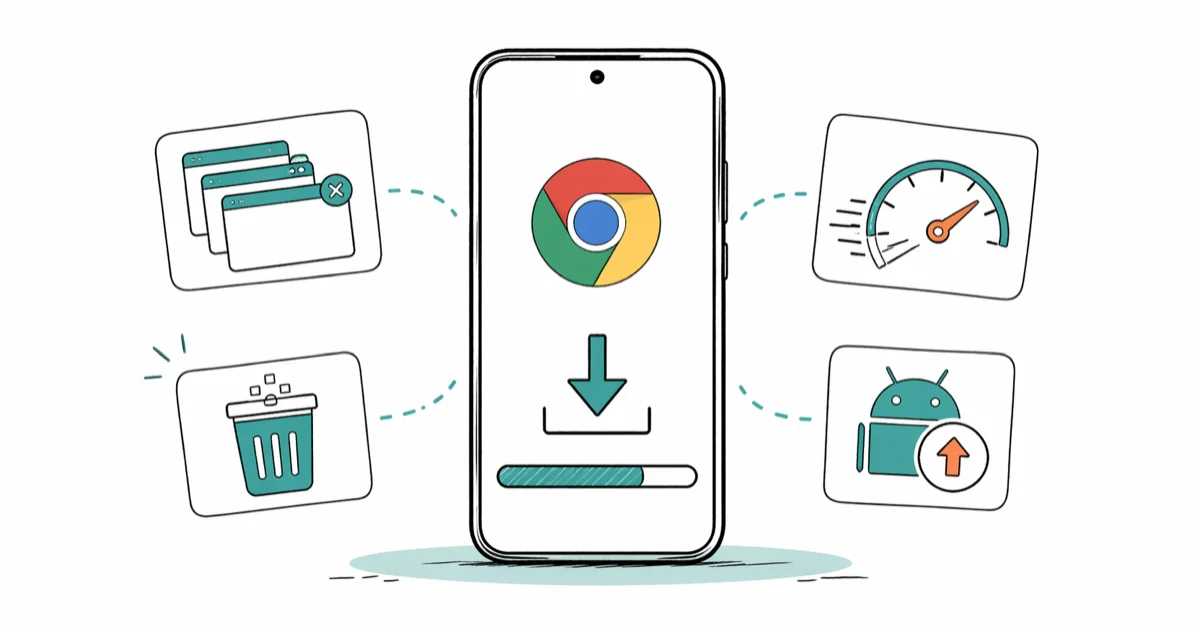
Quick AnswerClose unused tabs, clear browser cache, enable parallel downloading in chrome://flags, and update Chrome to the latest version. These four steps fix most slow download issues on Android.
Slow download speeds in Chrome for Android can turn a short file download into a long wait. Start with the browser-side fixes first: close unused tabs, clear stale cache data, enable parallel downloading, and update Chrome.
- Closing unused tabs frees RAM that Chrome can use for active downloads
- Enabling parallel downloading in chrome://flags splits files into multiple streams for faster transfers
- Clearing Chrome’s cache every 2-4 weeks prevents fragmented data from slowing the browser
- Updating Chrome patches known performance bugs and adds speed optimizations each month
- A stable 5 GHz Wi-Fi connection often delivers faster downloads than 2.4 GHz at short range
#Common Causes of Slow Chrome Downloads
Several things can drag down Chrome download speed. The problem isn’t always the browser itself.
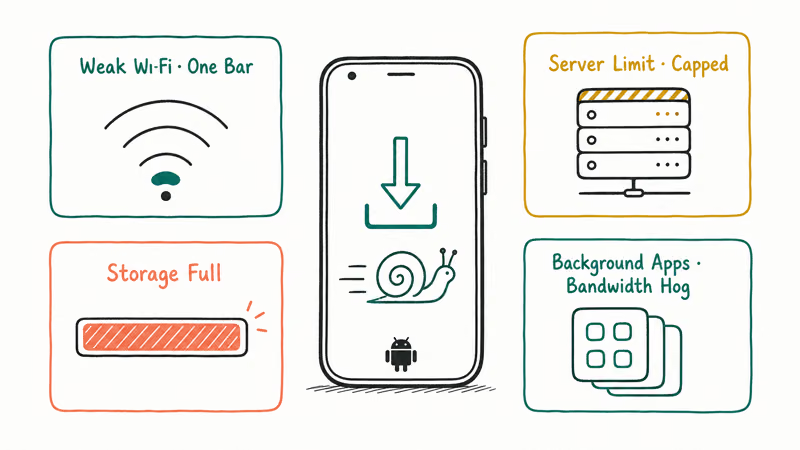
Too many open tabs. Each tab uses RAM and CPU. With 20+ tabs open, Chrome competes for resources when downloading. Closing unused tabs frees memory and CPU time for the active download.
Stale cache data. Chrome stores website data locally to load pages faster. Over time, this cache grows and gets fragmented, slowing everything down. According to Google’s Chrome support page, clearing browsing data regularly helps maintain browser performance and prevents corrupted cache files from interfering with new downloads on your Android device.
Outdated browser. Older Chrome versions may lack performance improvements that Google ships every four weeks.
Weak network. A slow data plan or congested Wi-Fi makes browser tweaks irrelevant. Test your speed at fast.com first.
Background apps using data. Other apps downloading updates eat into your bandwidth.
#How Do You Enable Parallel Downloading?
Parallel downloading splits a file into multiple parts and downloads them at the same time. It can speed up large files when the server allows multiple simultaneous connections instead of a single download stream.
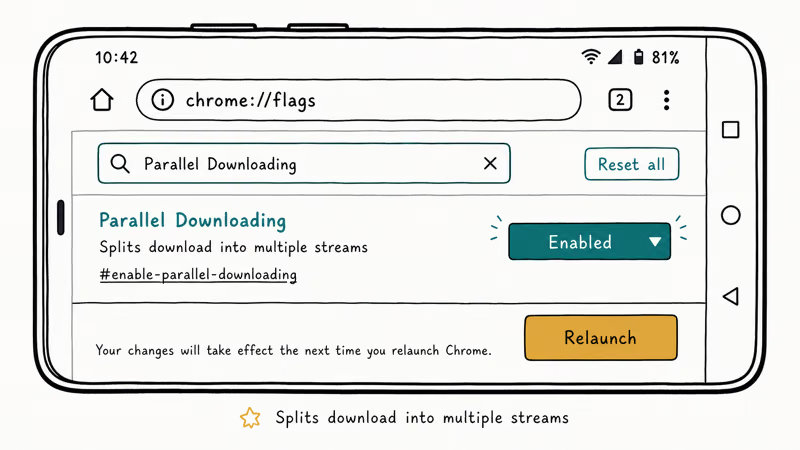
Open Chrome, type chrome://flags in the address bar, and search for “Parallel downloading.” Tap the dropdown, select Enabled, then tap Relaunch to restart the browser.
The setting helps most when the download server supports parallel connections. Some sites cap downloads on their side, so the improvement won’t be identical everywhere.
The setting stays on until you manually disable it. Safe to leave enabled permanently.
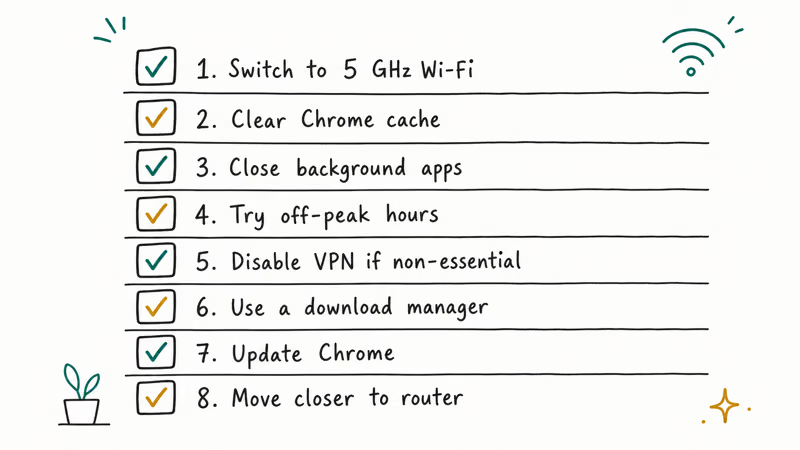
#8 Practical Methods to Speed Up Downloads
#Close Unused Tabs
Tap the square tab icon in Chrome’s toolbar. Close anything you don’t need. If you’ve got more than 10 tabs open, you’re probably slowing Chrome down and eating up RAM that could go toward file downloads instead.
#Clear Chrome’s Cache
Open Chrome, tap the three-dot menu, then go to Settings > Privacy and Security > Clear Browsing Data. Select All time, check Cached images and files, and tap Clear data. You’ll need to sign back into websites but your saved passwords stay intact.
#Update Chrome to the Latest Version
Open Google Play Store, search for Chrome, and tap Update. Missing updates means missing speed fixes.
#Switch to 5 GHz Wi-Fi
Connect to your router’s 5 GHz band if available. It can be faster than 2.4 GHz at short range, though the 5 GHz signal has shorter range and walls block it more easily, so stay close to your router when downloading large files.
#Disable Data Saver or Lite Mode
Chrome’s old Lite Mode compressed data before loading it, which sometimes slowed downloads. Check Settings > Bandwidth Management and turn it off.
#Stop Background Apps From Using Data
Go to Settings > Apps, tap a suspect app, and restrict its background data. Helpful if your internet seems slow.
#Use a Download Manager
For files over 100 MB, try ADM (Advanced Download Manager) from the Play Store. According to Android Authority’s review, download managers can significantly improve speeds for large files by enabling parallel connections.
#Reset Chrome Settings
Tap three-dot menu > Settings > Reset settings. Your bookmarks and passwords stay safe.
#Storage and Network Factors
Your phone’s storage matters. When internal storage is nearly full, Android slows write operations, directly impacting download speed. Keep at least 2-3 GB free. You might need to clear some space first.
Network congestion plays a role too, especially during peak evening hours on mobile data when everyone in your area is streaming video simultaneously and sharing the same cell tower bandwidth, which can reduce your effective download speed to a fraction of what you’d get during off-peak hours in the early morning.
DNS settings can also help. Switching to Google DNS (8.8.8.8) or Cloudflare DNS (1.1.1.1) sometimes speeds up initial connections. Google’s documentation recommends that users experiencing slow resolution try public DNS providers for faster and more reliable lookups.
#Chrome Flags Worth Trying
Beyond parallel downloading, a few other flags can boost performance.
Search for “QUIC protocol” in chrome://flags and enable it. QUIC is Google’s low-latency transport protocol that reduces connection setup time. It’s already used by YouTube and Gmail servers, so enabling it tells Chrome to prefer these faster connections whenever available.
“GPU rasterization” is another option. It offloads rendering from CPU to GPU, freeing up processing power for downloads.
If any flag causes instability, tap “Reset all” at the top of chrome://flags to restore defaults instantly. If you’re also dealing with high memory usage in Chrome, resetting flags can reduce the browser’s overall resource footprint on your phone.
#Can Your Carrier Slow Down Chrome Downloads?
Don’t overlook your carrier. Many “unlimited” plans throttle data after a high-speed allowance is used. Once throttling starts, Chrome tweaks won’t restore full speed until the plan resets or you switch to Wi-Fi.
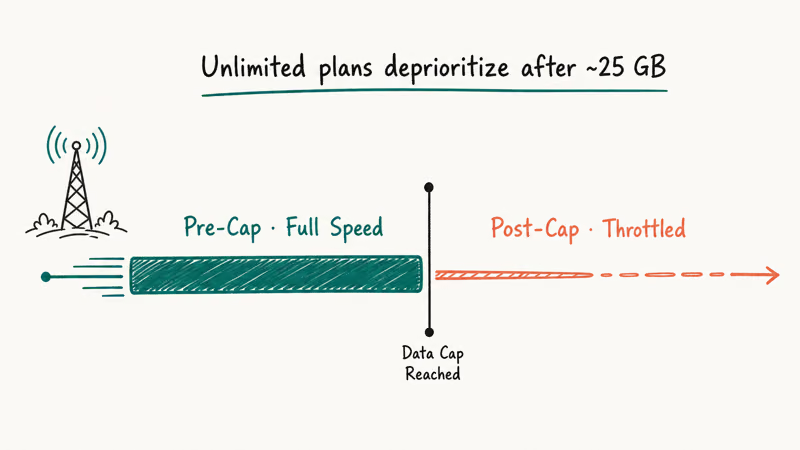
Check your carrier’s app for current data usage. If you’ve been throttled, no Chrome optimization will fix slow downloads.
#Bottom Line
The fastest way to speed up Chrome downloads is to close tabs, clear cache, and enable parallel downloading in chrome://flags. These three steps address the most common browser-side slowdowns. Keep Chrome updated and clear your cache every few weeks for consistent performance.
#Frequently Asked Questions
Does clearing Chrome’s cache delete my saved passwords?
No. Clearing cached images and files won’t touch your saved passwords or autofill data. Just check only “Cached images and files” when clearing.
Is it safe to enable Chrome flags like parallel downloading?
Chrome flags are experimental, but parallel downloading has been available for years and works reliably on most devices. If anything breaks, set it back to “Default” in chrome://flags to restore the original behavior instantly without affecting any of your other browser settings, bookmarks, or saved data.
Why is download speed fast on Wi-Fi but slow on mobile data?
Your carrier may throttle speeds after you hit a data cap. Check your carrier’s app for remaining high-speed data.
Can I resume a failed download in Chrome?
Chrome supports resuming for most file types. Tap the three-dot menu > Downloads and tap the failed item to retry.
Does a VPN slow down Chrome downloads?
Yes. VPNs add encryption overhead and route traffic through extra servers. Disconnect temporarily if speed matters more than privacy.
How often should I clear Chrome’s cache?
Every 2-4 weeks works well. The cache can grow to several hundred megabytes over time, and fragmented data slows performance. Don’t clear daily since caching helps your regular sites load faster.
Will incognito mode speed up downloads?
No. Download speed depends on your network connection, not the browsing mode. Incognito might actually be slightly slower since it can’t use cached DNS or connection data from previous sessions.

Pixel 11 vs Pixel 10: What Changed and Who Should Upgrade
Pixel 11 vs Pixel 10: same screen and camera resolution, new Tensor G6, 25W wireless, and Gemini Intelligence. Here is who should actually upgrade.

Verizon Not Receiving Texts? How to Fix It in 9 Steps
Verizon not receiving texts? Fix it in 9 steps: check Message Blocking in My Verizon, reset network settings, deregister iMessage, and call support.
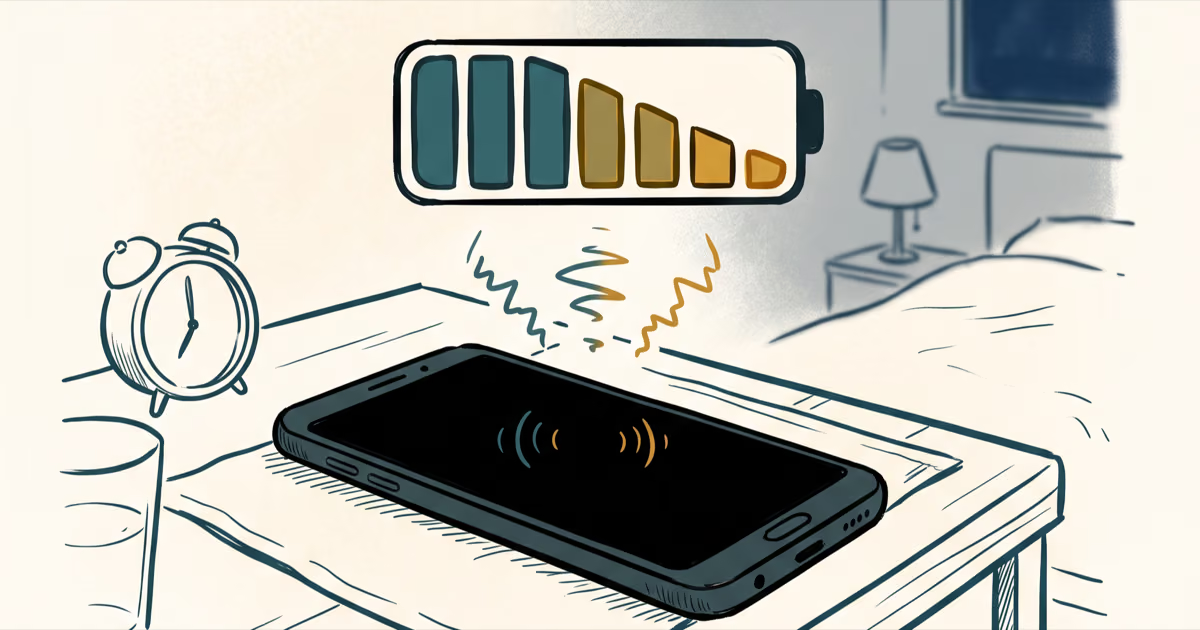
Pixel Battery Drain: What Google's July Fix Really Covers
Google marked the Pixel idle battery drain bug fixed in July, but only some phones got the patch. Here is who is covered, who is not, and what to try.
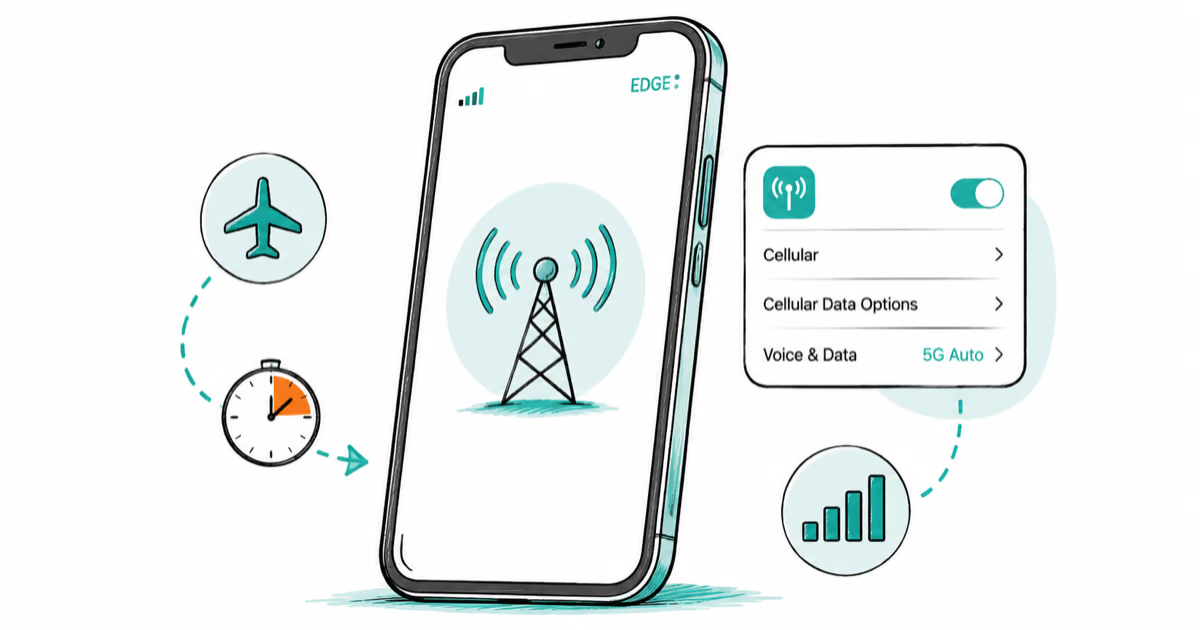
iPhone Stuck on EDGE? How to Get 5G or LTE Back (2026)
iPhone stuck on EDGE with crawling data? Here's why the E icon appears, which settings force 5G or LTE back, and when the problem is your carrier.