How to Make a YouTube Song Your Ringtone on Android
Learn how to turn a YouTube song into a custom ringtone on Android by downloading the audio, trimming it to 30 seconds, and setting it in Sound settings.
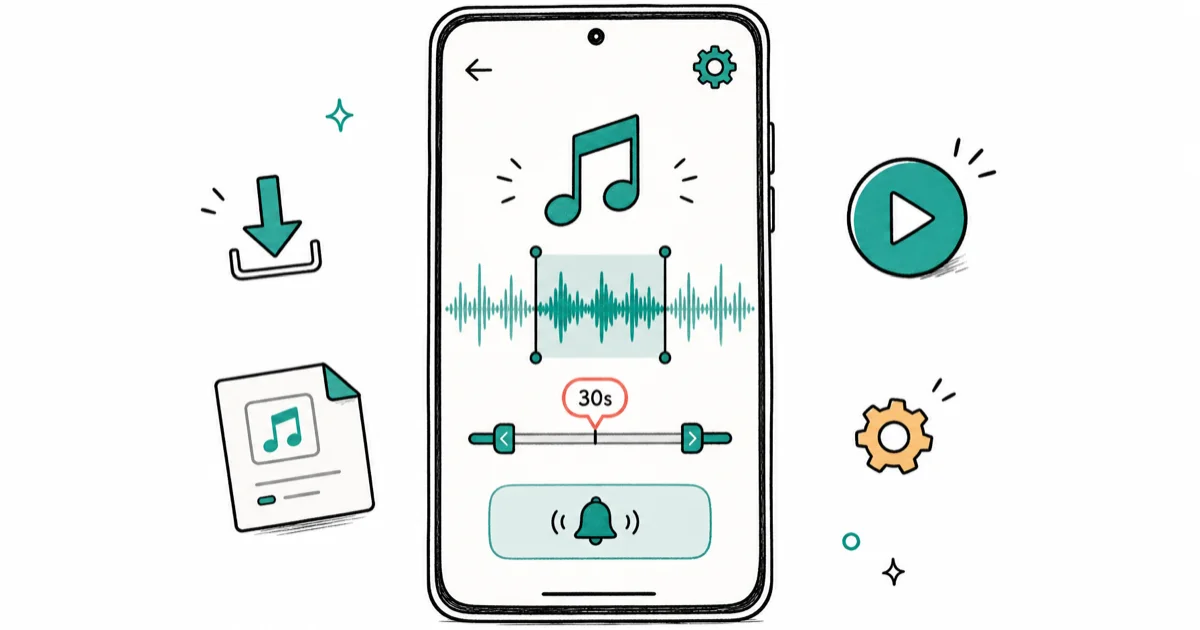
Quick AnswerDownload the YouTube audio using an online converter, trim it to 30 seconds with MP3Cut.net, save it as MP3, then go to Settings > Sound > Phone Ringtone and select your custom file.
Setting a YouTube song as your Android ringtone takes about 5 minutes. The whole process works on modern Android phones without any paid apps.
- Most YouTube music is copyrighted; use Free Music Archive for royalty-free alternatives
- Y2Mate and YTMP3.cx convert YouTube URLs to MP3; use 320 kbps for the best sound
- Trim audio to 15-30 seconds with MP3Cut.net and add fade-in/out for a polished result
- Copy the MP3 to the Ringtones folder, then set it in
Settings>Sound>Phone Ringtone - If the ringtone doesn’t appear, confirm the file is MP3 or M4A in the correct folder
#Is It Legal to Use YouTube Songs as Ringtones?
Most music on YouTube is copyrighted. Downloading and using it as a ringtone is technically a copyright violation in most countries, even for personal use.
According to Wikipedia’s overview of music copyright, personal use exceptions exist in some jurisdictions but are narrow and not a reliable legal defense. The same overview states that copyright protection attaches automatically to a recording, so a track stays protected even when no copyright notice is shown. The safest approach: use royalty-free music from Free Music Archive or tracks licensed under Creative Commons, which you can use freely for any purpose including ringtones.
If you own a digital copy of the song (purchased on iTunes or Google Play), you can use it as a ringtone on your own device without legal concern.
#How Do You Convert a YouTube Video to MP3?
Three popular YouTube-to-MP3 converters handle this well: Y2Mate, YTMP3.cx, and SnapSave.
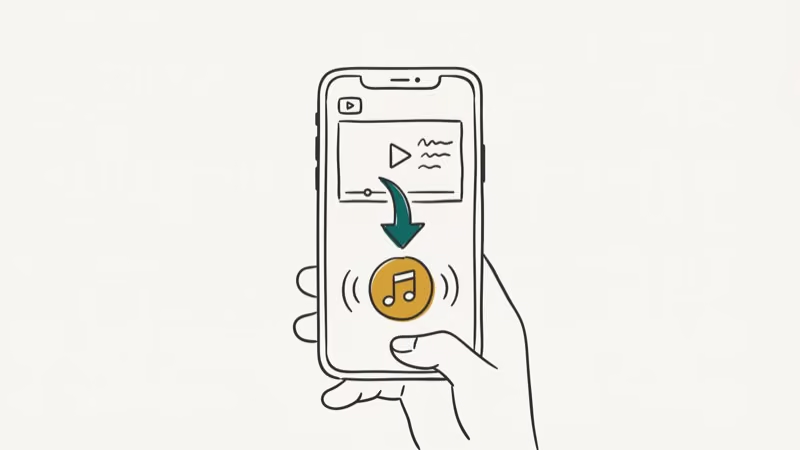
All three handle a standard 3-minute music video without trouble. These converters cap output at 320 kbps, matching the quality ceiling of the original YouTube stream.
Copy the YouTube video URL, go to YTMP3.cx, paste the URL, and select MP3 format at 320 kbps.
Click Convert. Done.
The downloaded file goes to your phone’s Downloads folder if you’re doing this on Android, or to your PC’s Downloads folder if you convert on a computer first.
Android’s official media documentation states that Android supports MP3, M4A, AAC, OGG, and FLAC as audio formats. MP3 is the safest choice for compatibility across all Android versions and device manufacturers, including Samsung, Pixel, and OnePlus. The same MP3 file generally works across devices running Android 12 through 14 without any format conversion.
#Trimming the Audio to the Right Length
A good ringtone is 15 to 30 seconds long.
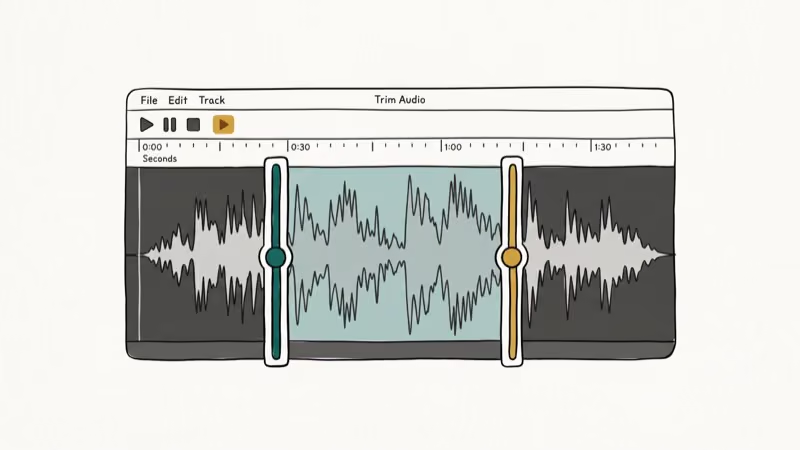
The chorus or a recognizable intro hook usually works best.
MP3Cut.net trims a 3-minute song down to a 25-second ringtone in just a few clicks.
Go to MP3Cut.net, click Open File, upload your MP3, drag the start/end markers to select your 15-30 second segment, enable Fade In and Fade Out, then click Save.
If you prefer doing this directly on Android, apps like Ringtone Maker and MP3 Cutter on the Play Store handle both conversion and trimming in one step. If you’re also looking to add text to photos on Android for contact customization, that works well alongside a custom ringtone setup.
#Setting Your Custom Ringtone on Android
With the trimmed MP3 ready, here’s how to set it as your ringtone.
#Option 1: Transfer via USB
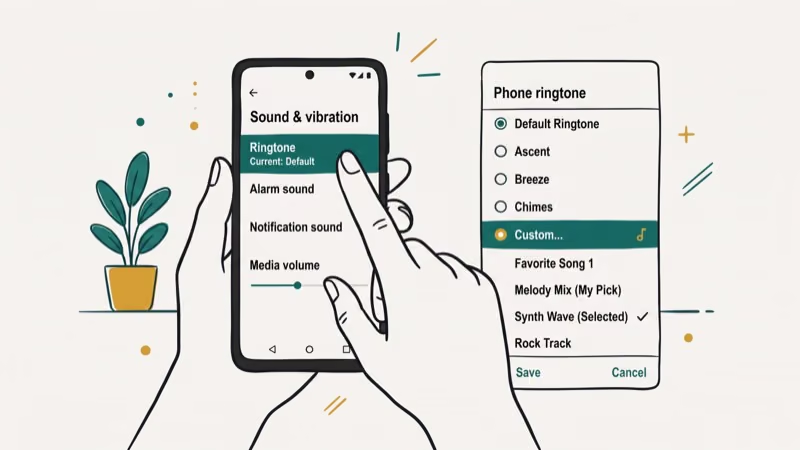
Connect your Android phone to a computer with a USB cable. Select File Transfer mode when prompted. Open the phone’s storage and copy the MP3 file into the Ringtones folder. If the folder doesn’t exist, create it at the root of Internal Storage.
Once copied, go to Settings > Sound and Vibration > Phone Ringtone. Your custom file should appear in the list.
#Option 2: Download Directly to Android
Convert and trim the file on your phone’s browser, then save it. Use a file manager to move it from Downloads to the Ringtones folder. Then follow the same Settings path above.
On some Android phones, the Ringtones folder needs a phone restart before the new file appears in the Settings ringtone list. Restart your phone and open the ringtone picker again if the file doesn’t show up immediately. It should appear shortly after the device finishes its reboot sequence.
#Assigning Ringtones to Specific Contacts
You can set a different ringtone for individual contacts. Open the Contacts app, tap a contact, tap the three-dot menu, and look for Set Ringtone.
This works on Samsung Galaxy phones running One UI, Google Pixel phones, and most other Android devices.
#Troubleshooting Tips
Ringtone not showing in settings. Confirm the file is in the Ringtones folder, not in Downloads. Also confirm it’s MP3 or M4A format. If it still doesn’t appear, restart your phone.
No sound playing. Check that your phone isn’t in DND mode or set to silent. Go to Settings > Sound and verify the ringtone volume is turned up.
Poor audio quality. Re-convert using 320 kbps. Lower bitrate settings produce a noticeably muddy sound through phone speakers, especially noticeable at higher volume settings. The difference between 128 kbps and 320 kbps is significant enough that it’s worth starting with the highest quality download you can get, then trimming afterward, rather than trimming first and converting second.
If YouTube is causing issues like YouTube keep pausing during your download session, fix that browser issue first before trying again.
#Alternative Apps for One-Step Conversion
The multi-step process isn’t for everyone, and we get that. Zedge has a large royalty-free ringtone library you can download directly to your phone, no trimming required, and most tracks there are cleared for personal use without any legal worry.
For YouTube-related issues beyond ringtones, the guides on how to disable YouTube Shorts and playing YouTube videos backwards cover other customization options.
Need a different format? Our convert YouTube videos guide walks through it.
#Bottom Line
Download the audio via YTMP3.cx at 320 kbps, trim it to 25 seconds using MP3Cut.net, save it in the Ringtones folder, then select it in Settings. The whole process takes under 5 minutes on Android 14. If you want to skip the legal gray area entirely, use a track from Free Music Archive instead.
#Frequently Asked Questions
Is it legal to use YouTube songs as ringtones?
Technically no, for copyrighted music. Most YouTube music is protected by copyright, and downloading it without permission is a violation even for personal use. Enforcement is rare, but using royalty-free music from Free Music Archive or tracks you’ve purchased outright is the cleanest solution. You won’t have to worry about your ringtone being claimed or removed, and the audio quality from purchased tracks is usually better than what YouTube-to-MP3 converters can extract anyway.
Why can’t I find my custom ringtone in settings?
File location is the most common cause. The ringtone must be in the Ringtones folder specifically, not Downloads, Music, or any other folder. Format matters too: use MP3 or M4A. Restart your phone if the file still doesn’t appear.
How long should a ringtone be?
15 to 30 seconds. Pick the chorus.
Can I use the same method for notification sounds?
Yes. Use a shorter clip of 2 to 5 seconds and save it in the Notifications folder on your phone’s Internal Storage instead of the Ringtones folder. Everything else in the process is identical to the ringtone method described above.
What if I can’t connect my phone to a computer?
Convert and trim on your phone’s browser, save to internal storage, and use Files by Google to move the file from Downloads to Ringtones. No computer needed at any step.
Does this work on all Android versions?
Yes, with minor label differences. On Samsung devices, the path is Settings > Sound and Vibration > Phone Ringtone. On Google Pixel devices, it’s Settings > Sound. The Ringtones folder method works on Android 9 through Android 14 across Pixel and Galaxy devices alike.

Pixel 11 vs Pixel 10: What Changed and Who Should Upgrade
Pixel 11 vs Pixel 10: same screen and camera resolution, new Tensor G6, 25W wireless, and Gemini Intelligence. Here is who should actually upgrade.

Verizon Not Receiving Texts? How to Fix It in 9 Steps
Verizon not receiving texts? Fix it in 9 steps: check Message Blocking in My Verizon, reset network settings, deregister iMessage, and call support.
Pixel Battery Drain: What Google's July Fix Really Covers
Google marked the Pixel idle battery drain bug fixed in July, but only some phones got the patch. Here is who is covered, who is not, and what to try.
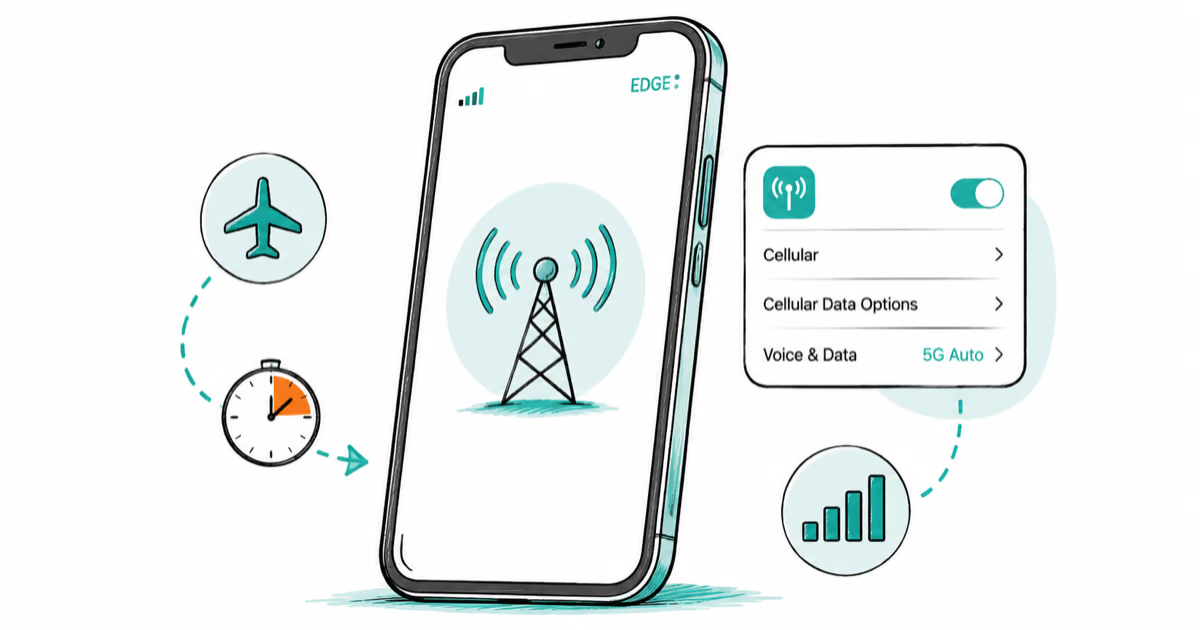
iPhone Stuck on EDGE? How to Get 5G or LTE Back (2026)
iPhone stuck on EDGE with crawling data? Here's why the E icon appears, which settings force 5G or LTE back, and when the problem is your carrier.