How to Recover Contacts After Factory Reset on Android
Recover contacts after factory reset on Android with Google sync, Samsung Cloud, or data recovery tools. Step-by-step for all Android phones.
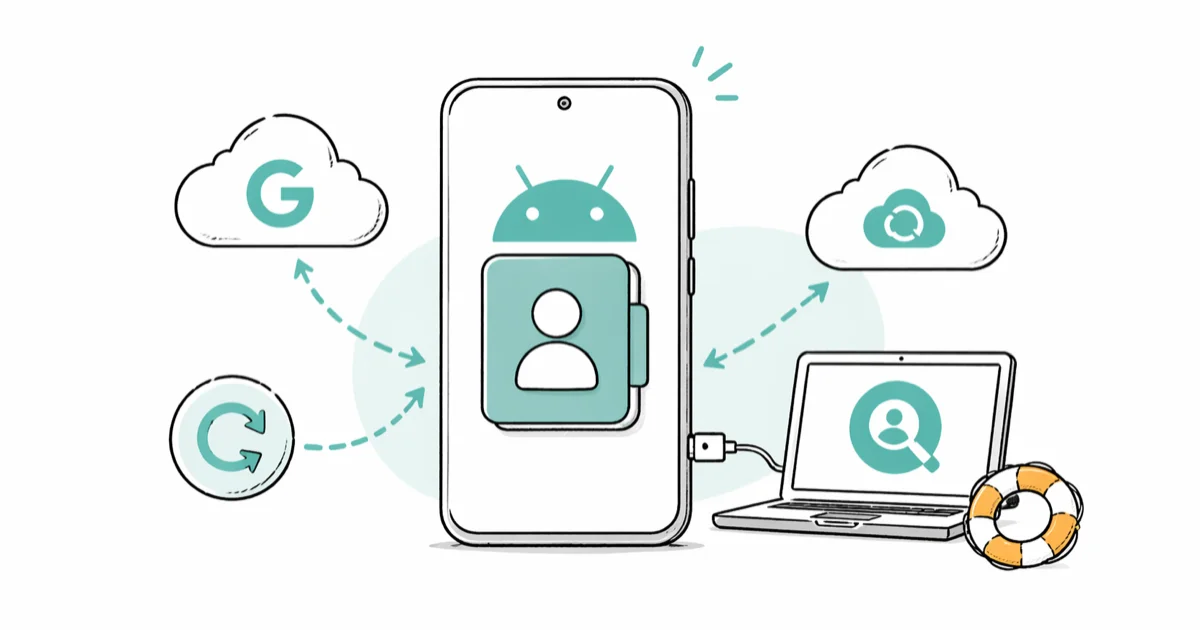
Quick AnswerSign back into your Google account after the factory reset and turn on contact sync. If your contacts weren't synced to Google beforehand, use desktop data recovery software to scan your phone's internal storage via USB before new data overwrites them.
Your contacts aren’t gone after a factory reset. If contact sync was on before the reset, signing back into the same Google account can bring those contacts back to the Android phone.
- Google sync restores contacts after signing back into your account when sync was enabled before the reset
- SIM cards retain contacts saved to them, but most Android phones store contacts in phone memory by default
- Data recovery software can scan internal storage over USB for unsynced contacts
- Samsung Cloud keeps contact backups for 30 days after a reset
- Acting before new data accumulates gives you the best chance because new files can overwrite deleted records
#How Do You Restore Contacts Through Google Account Sync?
Google sync is the fastest recovery path after a factory reset. Every contact linked to your Google account before the reset is stored on Google’s servers indefinitely.
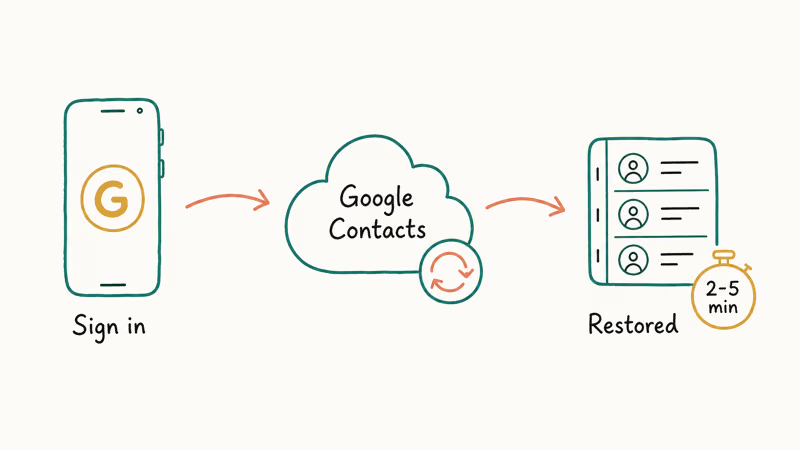
Set up your Google account during the initial phone setup screen, or go to Settings > Accounts > Add account > Google afterward. Once added, open the Contacts app and tap your profile icon. Go to Contacts app settings > Google Contacts sync settings, select your account, and confirm sync is turned on.
Your phone pulls all saved contacts from Google within a few minutes. According to Google’s support documentation, contacts synced to a Google account can be restored to any Android device at any time. If the setup wizard still asks for the previous Google credentials and blocks you, Google account recovery when FRP locks the phone after a wipe walks through g.co/recover and the 24-72 hour identity check.
If contacts don’t show up after enabling sync, visit contacts.google.com from any browser. Check whether your contacts appear there. If they’re visible on the web but missing from your phone, toggle contact sync off and back on under Settings > Accounts > Google.
Contacts saved only to phone memory (not synced to Google) won’t appear through this method. If that’s your situation, skip to the data recovery section below.
#What If Your Contacts Weren’t Backed Up to Google?
Not everyone has Google sync enabled. Older devices and phones bought in certain regions sometimes default to phone-only storage. You’ve got two options: check the SIM card or run a data recovery scan.
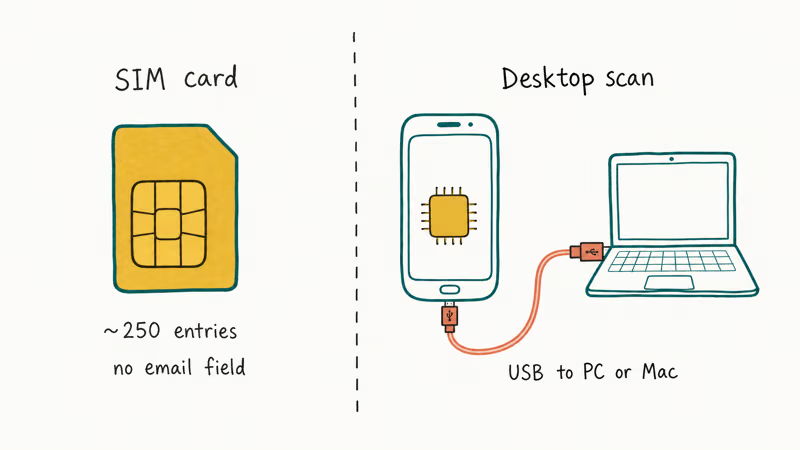
Check your SIM card first. Go to Contacts > Menu > Import, select your SIM card, and tap Import. The whole thing takes about 30 seconds. SIM cards hold around 250 entries and don’t support email or notes fields, so most people’s contacts aren’t on the SIM.
For unsynced contacts stored in phone memory, desktop recovery software is the only reliable option. Tools like dr.fone and Tenorshare UltData for Android connect to your phone via USB and scan internal storage for contact database files. Recovery gets less reliable after new data is written, so run the scan before installing apps, making calls, or sending messages.
After Google, SIM, and Samsung backup checks, DroidKit is another desktop scan option for unsynced contacts on your own phone; preview what it finds before paying.
Some links on this page are affiliate links, which means fone.tips may earn a commission at no extra cost to you.
Don’t install apps, make calls, or send texts before running the scan.
#Samsung Cloud and Smart Switch Recovery
Samsung phones have Samsung Cloud as an extra backup layer beyond Google sync. If you signed into a Samsung account before the reset, your contacts might be sitting in Samsung Cloud right now.
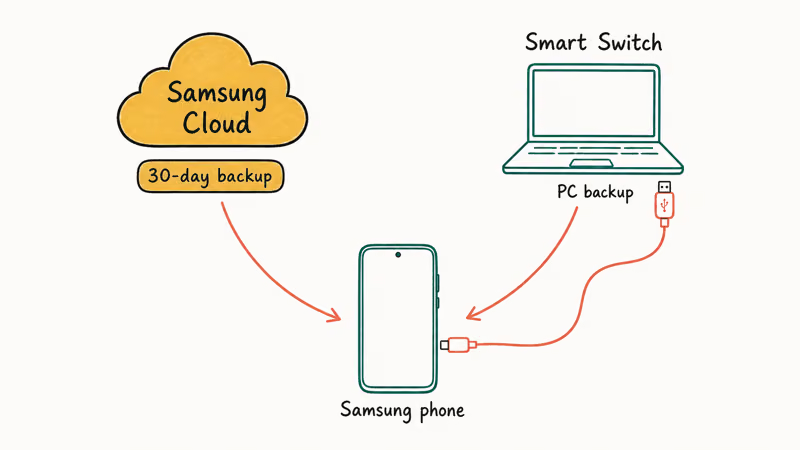
Go to Settings > Accounts and backup > Restore data. Sign into your Samsung account and select Contacts from the backup list. According to Samsung’s support page, Samsung Cloud retains backups for 30 days after a factory reset.
Samsung Smart Switch is another route. If you backed up your phone to a PC using Smart Switch before the reset, open the desktop app, connect your phone via USB, and restore. Smart Switch works independently of cloud services and handles large contact lists without issues. Your last backup timestamp shows in the Smart Switch app on your computer.
#Step-by-Step Data Recovery With Desktop Software
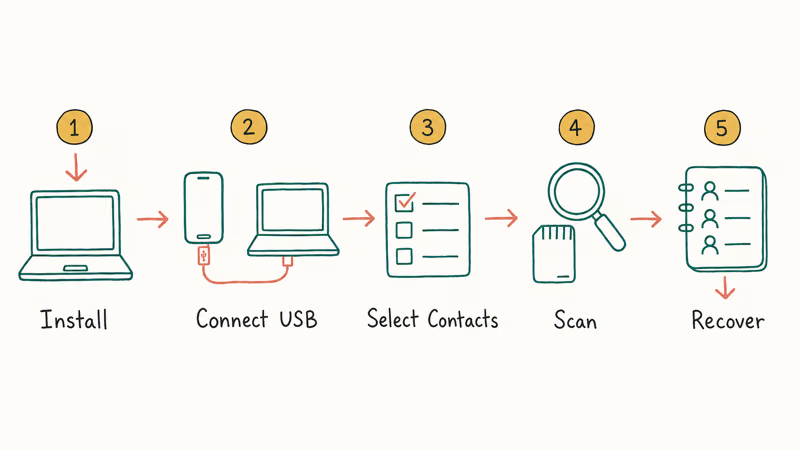
If cloud methods didn’t work or weren’t set up, data recovery software is your remaining option. Here’s the process with dr.fone:
-
Download dr.fone from Wondershare’s official site and install it on your Windows PC or Mac. The download is about 80MB. Open the Data Recovery module from the main screen.
-
Connect your Android phone via USB cable. Enable USB debugging in Developer Options when the prompt appears on your phone screen.
-
Select Contacts on the file type screen. Deselect everything else. Limiting the scan to contacts narrows the job and avoids pulling unrelated file types.
-
Click Start and wait for the scan to finish.
-
Preview the recovered contacts, pick the ones you need, and click Recover to Device.
According to Android’s developer documentation, the contacts database sits in protected app storage. That storage boundary is why on-device recovery apps are unlikely to help after a factory reset; desktop tools connected over USB are the more plausible route for unsynced contacts.
#Recovery Options Without a Computer
On-device recovery apps rarely work after a factory reset.
Your best move without a computer is checking contacts.google.com on any device and signing into the same Google account. Contacts that were ever synced will appear in that web interface regardless of what happened to the phone. On-device apps can’t reach the raw storage partitions where deleted contact databases sit, which is why they return zero results while desktop tools connected via USB can scan those same partitions and find recoverable data.
WhatsApp contacts are separate from your phone’s contact list and reappear after reinstalling the app.
If your phone won’t turn on at all, recovery apps can’t help. Professional data recovery services can sometimes pull data from the memory chip directly, but they typically charge a few hundred dollars. The guide to recovering data from broken Android devices covers when professional services make financial sense and what to expect from the process.
#How to Prevent Contact Loss Before Your Next Factory Reset
Two minutes of prep saves hours of recovery. Confirm Google One backup is active under Settings > System > Backup. According to Google’s backup documentation, this automatically captures contacts, call history, and app data.
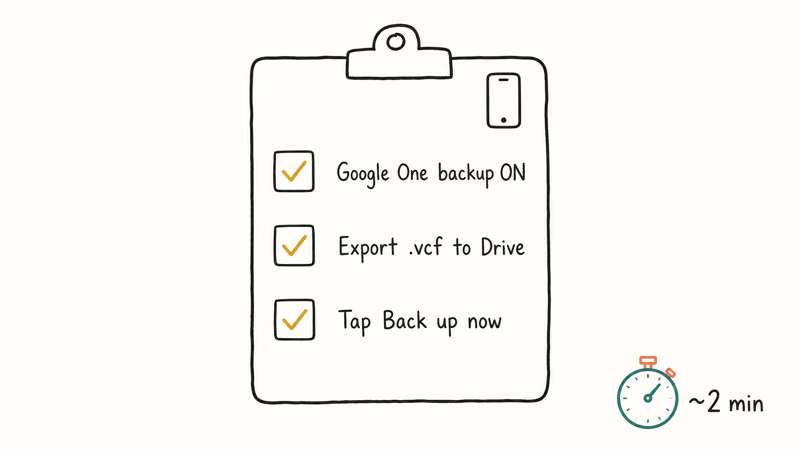
You should also export a .vcf backup file. Open the Contacts app, tap Menu > Export > Export to .vcf file, and save it to Google Drive. VCF files preserve every field including phone numbers, emails, and notes.
Tap Back up now before any planned reset. The Android backup walks through what gets saved before you erase the phone.
#Bottom Line
Sign into your Google account first. That single step brings back contacts for most people. Check Samsung Cloud if you’re on a Samsung device. Use data recovery software only for contacts that were never synced to any cloud service, and run the scan within 24 hours for the best results.
#Frequently Asked Questions
Can I recover contacts after a factory reset without any backup?
Yes. Data recovery software like dr.fone can scan your phone’s internal storage for contact database files without any prior backup. The key is acting fast. Recovery is most plausible soon after a reset; normal phone use can overwrite deleted records and lower the chance of a complete restore.
How long does the contact recovery process take?
Google sync usually starts after you sign in and enable contact sync. Data recovery scan time depends on your phone’s storage size and how much data needs scanning.
Will contacts be permanently lost after a factory reset?
Not if you act quickly. Contact data stays on internal storage until new files overwrite it. The recovery window depends on phone usage after the reset.
Do Android phones save contacts to SIM or phone memory by default?
Most Android phones running Android 10 and later default to Google account storage or phone memory, not the SIM card. Samsung devices specifically default to Google account storage. SIM cards hold about 250 entries and don’t support email addresses or notes, which is why the default shifted to phone memory years ago.
Is data recovery software safe to use on my phone?
Reputable tools like dr.fone and Tenorshare UltData are read-only during the scan phase. They don’t write to your phone’s storage while recovering. Both have been available for over a decade. Download only from the official Wondershare or Tenorshare websites.
Can I selectively recover only certain contacts?
Yes. Both dr.fone and Tenorshare UltData show a preview of all recovered contacts before restoration. You pick individual entries or groups rather than restoring everything at once, which helps avoid importing old duplicates you’ve already removed from your phone book. The preview screen lets you review entries and search by name before restoring anything.
Does a factory reset delete contacts from my Google account?
No. A factory reset only erases data from the phone itself. Contacts synced to your Google account remain on Google’s servers untouched. You can verify this by visiting contacts.google.com from any browser and signing in.
What’s the difference between Google sync and Samsung Cloud for contacts?
Google sync works on every Android phone and stores contacts indefinitely. Samsung Cloud is Samsung-only and keeps backups for 30 days after a reset. If you have both enabled, your contacts exist in two separate cloud backups, which gives you a stronger safety net.

Pixel 11 vs Pixel 10: What Changed and Who Should Upgrade
Pixel 11 vs Pixel 10: same screen and camera resolution, new Tensor G6, 25W wireless, and Gemini Intelligence. Here is who should actually upgrade.

Verizon Not Receiving Texts? How to Fix It in 9 Steps
Verizon not receiving texts? Fix it in 9 steps: check Message Blocking in My Verizon, reset network settings, deregister iMessage, and call support.
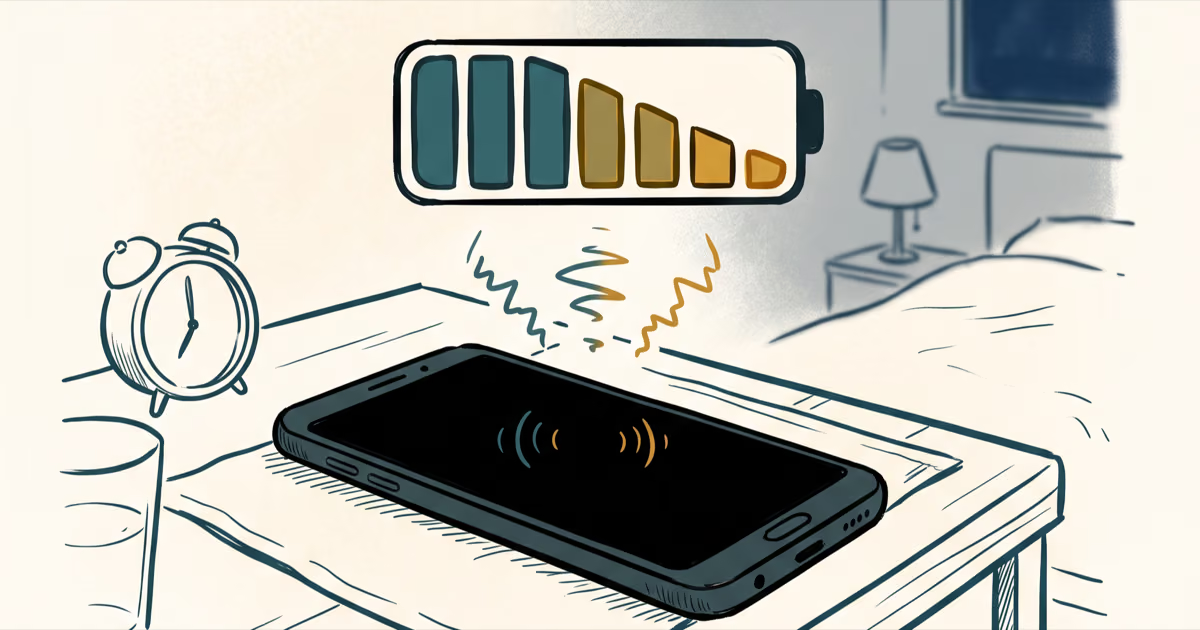
Pixel Battery Drain: What Google's July Fix Really Covers
Google marked the Pixel idle battery drain bug fixed in July, but only some phones got the patch. Here is who is covered, who is not, and what to try.
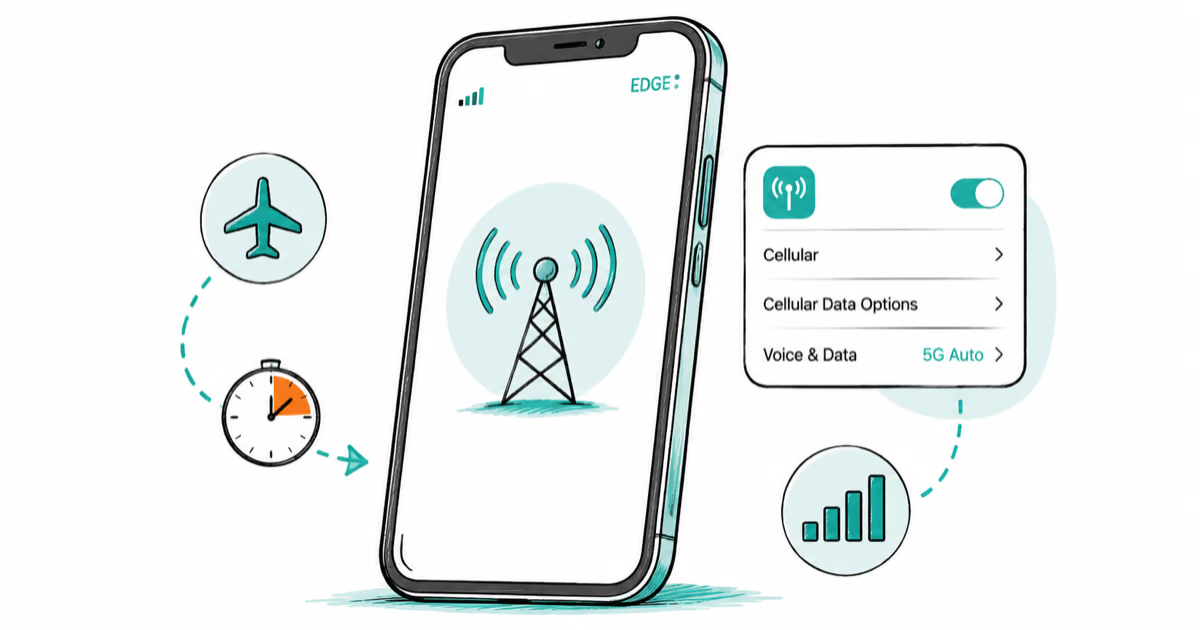
iPhone Stuck on EDGE? How to Get 5G or LTE Back (2026)
iPhone stuck on EDGE with crawling data? Here's why the E icon appears, which settings force 5G or LTE back, and when the problem is your carrier.