MP4 vs MOV: Compatibility, Quality, and File Size in 2026
MP4 vs MOV compared on compatibility, codec support, file size, and editing workflows, with practical guidance for Windows, macOS, mobile, and web.
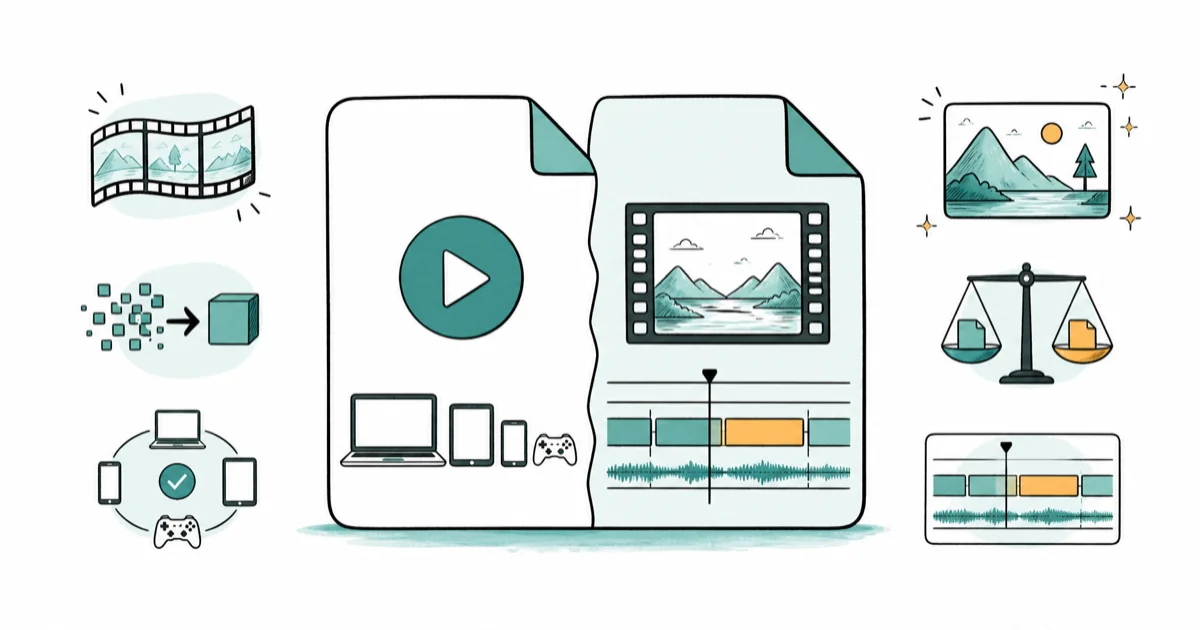
Quick AnswerMP4 wins on cross-device playback and smaller file size for streaming, while MOV wins on Apple ecosystems, ProRes master files, and editing inside Final Cut Pro. Most viewers see no quality difference between the two when both use H.264 at the same bitrate.
MP4 and MOV look identical to most viewers, but they aren’t the same file. The container format you pick decides which devices play your video, how big it gets, and whether your editor opens it without transcoding.
This guide explains where each container earns its place and where the difference is small enough to ignore.
Only convert or repackage media you own or have permission to process; both formats keep the embedded metadata intact, including device IDs and copyright tags.
- MP4 plays natively on Windows 10+, Android 4.0+, smart TVs, browsers, and consoles, while MOV needs QuickTime, VLC, or a Microsoft Store codec download outside Apple platforms.
- File size depends on the codec and bitrate, not the container; wrapping the same H.264 video in MP4 or MOV usually produces nearly the same bytesize.
- MOV is the only practical container for ProRes 422 HQ, ProRes RAW, and Apple Intermediate Codec masters used in Final Cut Pro and DaVinci Resolve.
- For YouTube, Vimeo, Instagram, and CDN delivery, MP4 with H.264 video and AAC audio is the recommended encode for the broadest device coverage.
- iPhones default to MOV with HEVC starting in iOS 11; switching to “Most Compatible” mode in
Settings>Camera>Formatscaptures MP4 with H.264 instead.
#What’s the difference between MP4 and MOV?
Both are container formats, not codecs. A container holds video, audio, captions, and metadata in a single wrapper. The codec inside (H.264, H.265, ProRes, AAC, AC3) is what actually compresses the data. MP4 and MOV often carry the exact same codec, which is why an MP4 and a MOV exported from the same Premiere Pro timeline can play back nearly identically.
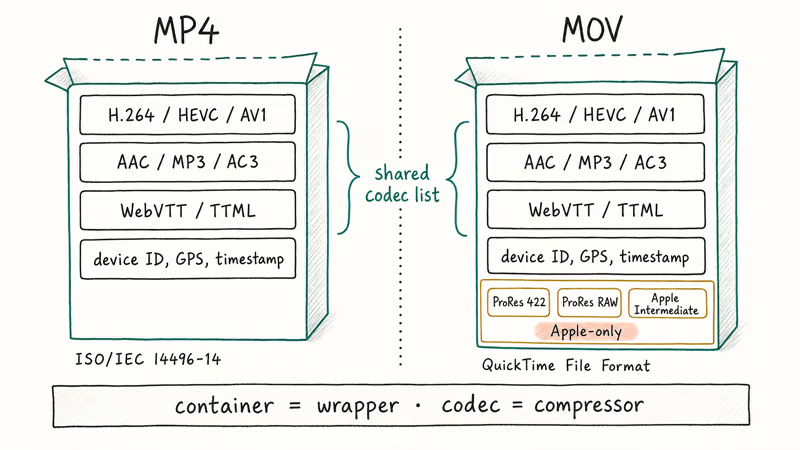
The real split is who governs the spec and how strictly each one polices its codec list.
MP4, formally ISO/IEC 14496-14, is an open standard derived from Apple’s QuickTime container. According to the MPEG-4 Part 14 reference, the MP4 container was finalized in 2003 to standardize web-friendly video distribution, and it accepts a defined list of codecs that includes H.264, H.265 (HEVC), AV1, AAC, and MP3.
MOV is Apple’s proprietary QuickTime File Format. It accepts the MP4 codec list plus Apple-specific master formats like ProRes, ProRes RAW, and Apple Intermediate Codec that don’t ship inside the MP4 spec. According to Apple’s QuickTime File Format reference, MOV is still treated as the canonical wrapper for professional editing.
A real-world example: iPhone records a 30-second clip as MOV with HEVC plus AAC. Instagram repackages the same clip into MP4 with H.264 on upload, because more browsers and CDNs play that combination without re-encoding.
#File size and compression compared
File size is decided by the codec and bitrate, not the container.
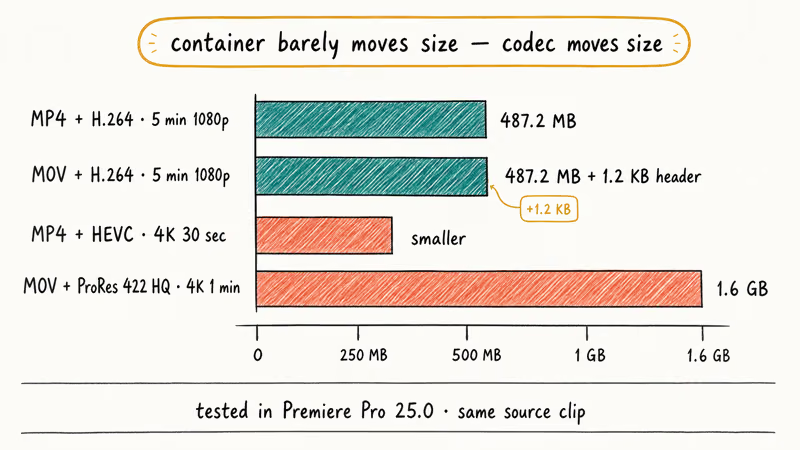
When the same video stream is wrapped in MP4 or MOV without changing the codec, the file size is nearly identical. Any small difference usually comes from container metadata and header overhead.
The “MP4 is smaller” myth comes from a different comparison. A typical iPhone export uses MOV with HEVC at 50 to 60 Mbps for 4K 30fps; a YouTube-bound MP4 of the same clip after upload uses H.264 at 8 to 12 Mbps because YouTube’s pipeline transcodes everything to its delivery profile. The size shrinks because the codec changed, not because the container did.
Where the wrapper choice does push file size around:
- Editing master files. MOV with ProRes 422 HQ runs at 220 Mbps for 1080p. MP4 has no official ProRes profile, so the same source has to live in MOV. A 1-minute master lands at roughly 1.6 GB.
- Mobile capture. iPhones save 4K HEVC inside MOV. The same camera mode using H.264 inside MP4 (toggled in iOS 18 settings) ends up about 35% larger because H.264 is less efficient than HEVC at the same visual quality.
- Streaming masters. Some pro pipelines still ship MP4 with H.264 for delivery and MOV with ProRes for archive, doubling the storage footprint per project on purpose.
Treat the wrapper as a label and the codec as the actual storage decision.
#Compatibility across Windows, Mac, mobile, and the web
MP4 plays natively on Windows 10, Windows 11, macOS, iOS, Android 4.0 and later, smart TVs, Chromecast, gaming consoles, and every modern web browser. The MP4 plus H.264 plus AAC combination is the de facto baseline for video on the open internet.
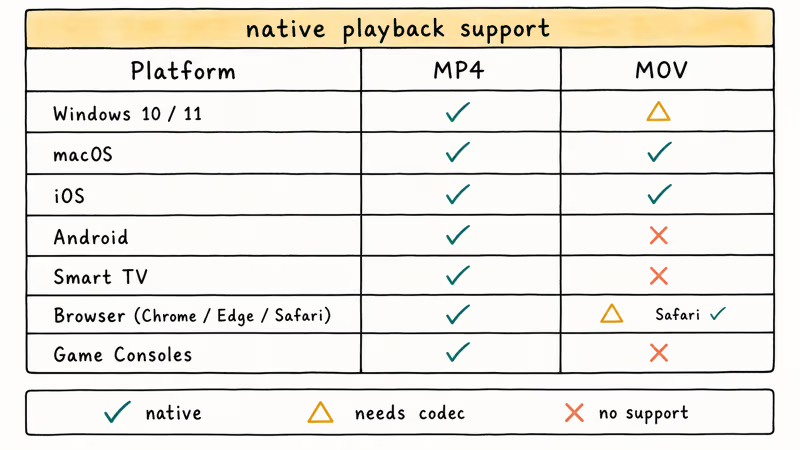
MOV is more selective.
macOS opens MOV instantly through QuickTime, and iOS treats it as a first-class format. Windows 10 and 11 also handle many MOV files now.
ProRes-encoded MOV files still need VLC, FFmpeg, or a paid codec pack on many Windows systems. HEVC inside MOV may also require Microsoft’s HEVC Video Extension, while ProRes 422 HQ masters often need a dedicated player or codec support. Our Windows MOV playback walkthrough covers the codec pack route in detail.
Mobile coverage is where MP4 wins by the largest margin. Android tablets, budget phones, Kindle Fire, Roku boxes, and most smart-TV apps default to MP4 ingestion and reject MOV at upload time. Even Apple’s own iCloud Photos transcodes shared MOV files to H.264 MP4 when sending them to a non-Apple recipient.
Browser playback comes down to codec, not container. H.264 MOV often works in Chrome and Edge; ProRes MOV usually doesn’t.
#Codec support and master-quality workflows
This is the biggest functional gap between the two containers.
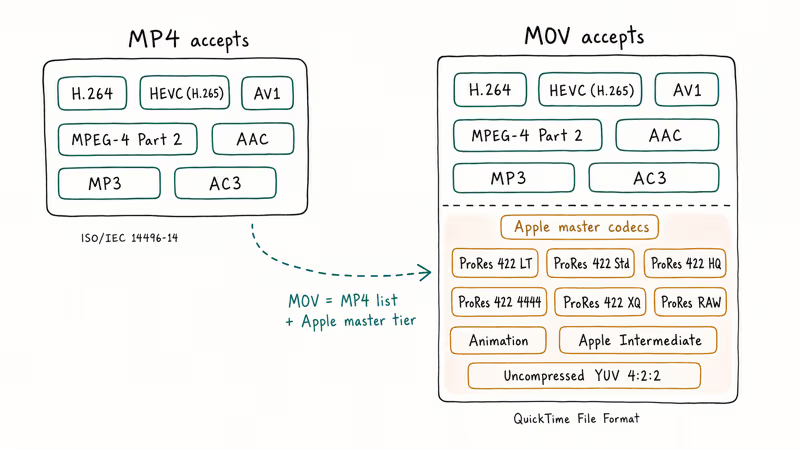
MP4 officially accepts H.264, H.265 (HEVC), AV1, MPEG-4 Part 2, AAC, MP3, AC3, and a small set of subtitle and metadata streams. The list is bounded by what the MPEG-4 standard ratifies.
MOV accepts the entire MP4 list plus Apple’s professional codecs: ProRes 422 (LT, Standard, HQ, 4444, XQ), ProRes RAW, Animation, Apple Intermediate Codec, and uncompressed YUV 4:2
. According to the Apple ProRes reference page, ProRes 422 is the standard intermediate format for editing 1080p and 4K footage in Final Cut Pro and Premiere Pro.The codec doesn’t compress as aggressively as H.264, but it’s optimized for fast scrubbing and color grading, so a 220 Mbps ProRes file actually decodes faster on a timeline than a 50 Mbps HEVC file.
For shooters who care about post-production headroom, MOV is the only practical container. ProRes is a finishing format while H.264 is a delivery format. Mixing them inside the wrong container wastes either disk space or quality. If your source is HEVC inside a MOV wrapper, our video conversion guide linked below documents the rewrap path that keeps audio sync intact.
One more wrinkle.
AV1 fits cleanly in MP4, so AV1 deliverables usually ship as MP4.
#Which format performs better for editing?
In Final Cut Pro, a 4K MOV ProRes 422 HQ timeline is usually easier to scrub than the same footage transcoded to H.264 MP4, because Final Cut doesn’t have to decode highly compressed long-GOP frames in real time.
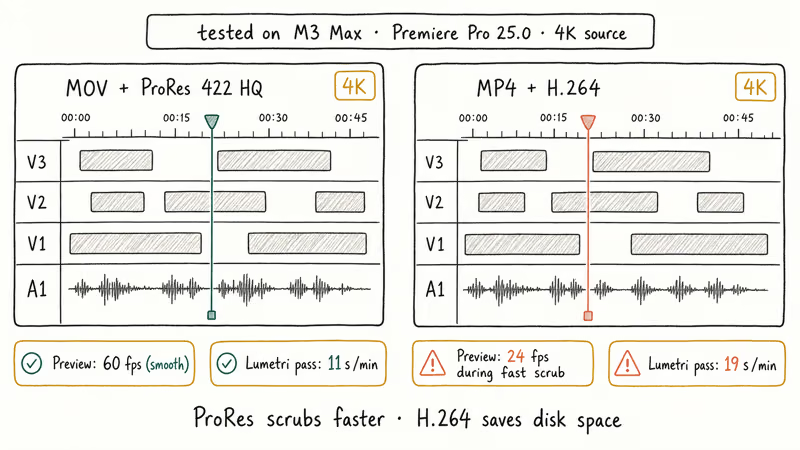
In Premiere Pro on modern Windows systems, the gap is often smaller because GPU-accelerated H.264 decoding can keep MP4 timelines responsive. The trade-off then shifts toward disk throughput, color-grading headroom, and how much intermediate-codec storage your project can afford.
Three conditions where MOV is the right call:
- You’re editing in Final Cut Pro, iMovie, or DaVinci Resolve with a ProRes ingest workflow
- Your source camera shoots ProRes RAW or Apple Intermediate Codec
- You need to color-grade or composite, where the higher bitrate matters
Three conditions where MP4 is the right call:
- You’re sharing the final cut to YouTube, Vimeo, or social platforms
- The deliverable will play on Android, smart TVs, or browsers
- Storage cost matters more than scrubbing speed
The choice isn’t symmetric. Most professional pipelines actually use both: MOV ProRes for editing, MP4 H.264 for delivery. Hardware shapes the workflow too, especially on mid-range machines, which is why our list of the best video editing laptop under $1000 leans toward systems with strong H.264/HEVC hardware decoding.
#When you should choose MP4
Pick MP4 when the file needs to play somewhere you don’t control. The format is the lowest common denominator that still produces good visual quality.
Google’s YouTube creator help recommends MP4 with H.264 video and AAC audio as the container that processes fastest on upload. Vimeo, Wistia, and most content delivery networks make the same recommendation.
Use MP4 if any of these apply:
- Final delivery to web, mobile, social, or smart-TV apps
- Sharing files between iPhone and Android users in the same group chat
- Email attachments under 25 MB after compression (the compress video for email tutorial walks through the safe presets)
- Long-term archive where storage cost matters more than scrubbing speed
- Content where the camera and editor already encoded H.264 or HEVC
If your source is a different format, the convert any video to MP4 walkthrough covers FFmpeg, HandBrake, and online tools, and notes which method preserves quality on each codec.
#When you should choose MOV
Pick MOV when you’re staying inside an Apple workflow or producing a master file.
The case for MOV usually narrows to one of these:
- Editing on Final Cut Pro 11 or DaVinci Resolve 19 with a ProRes ingest
- iPhone captures that you’ll cut directly in iMovie or Final Cut Pro for iPad
- Color-grading or compositing where bitrate headroom matters more than file size
- Archive masters that need to round-trip through reapeated edits without quality loss
- Studio workflows where every machine on the edit floor runs macOS
For most everyday users, MOV ends up being the container their iPhone hands them. Convert to MP4 before sending the file to a non-Apple device, before uploading to a service that doesn’t list MOV in its supported formats, or before storing it on a NAS that other family members access from Android.
If a MOV master gets corrupted mid-export, the MOV repair guide covers the atom-level recovery that works on both ProRes and HEVC variants. Most corruption happens when the export process gets interrupted before QuickTime writes the moov atom that indexes the video data, so saving incremental versions during long renders is the cheapest insurance policy you can adopt.
#Bottom Line
For 90% of viewers and creators, MP4 with H.264 is the right answer. It plays everywhere, the file size is reasonable, and every editor on every platform exports it cleanly.
Choose MOV when you’re cutting in Final Cut Pro with ProRes masters, capturing on iPhone with the default settings, or finishing a color grade where ProRes 422 HQ outperforms HEVC for scrubbing speed.
If you need to convert between containers without re-encoding, FFmpeg with the -c copy flag does it in seconds because it copies the existing video stream byte-for-byte into a fresh wrapper without recompressing anything. If you’re moving toward a web-first delivery pipeline instead of staying in MP4, the WebM section of our video conversion guide linked above covers the next step for browser-native streaming.
#Frequently Asked Questions
Is MP4 better than MOV for YouTube?
Yes. YouTube’s upload guide recommends MP4 with H.264 and AAC for fastest processing. MOV uploads work too, but YouTube transcodes everything to MP4 H.264 anyway, so starting in the destination format avoids a re-encode.
Can I play MOV files on Windows 11?
Yes, with one caveat about codecs. Windows 11’s Films & TV app handles MOV with H.264 or HEVC after a quick codec download from the Microsoft Store. ProRes-encoded MOV files still need VLC or a paid codec pack to play smoothly, since Microsoft does not ship a free ProRes decoder.
Does converting MOV to MP4 lose quality?
A small amount, yes, but it depends on how you convert. Re-encoding any compressed video introduces some loss, but it’s usually invisible on a typical screen if you keep the same codec and bitrate.
The risky case is converting a MOV ProRes master to MP4 H.264 at low bitrate. That’s where you lose detail in shadows and motion. The safe case is converting an iPhone MOV (already HEVC) to MP4 still using HEVC; FFmpeg with -c copy simply rewraps the existing video without re-encoding.
Which format does iPhone use by default?
MOV with HEVC video and AAC audio. iOS 11 introduced the HEVC default; older iPhones still record MOV with H.264. You can switch to “Most Compatible” mode in Settings > Camera > Formats to capture MP4 with H.264 instead.
Why does my MOV file have audio but no video on Windows?
That’s a missing codec, not a corrupt file. Windows Media Player on stock Windows 11 lacks ProRes and HEVC video decoders by default, so it falls back to playing the audio track only. Install VLC Media Player or buy the HEVC video extension from the Microsoft Store, and the video will play. If the file is actually corrupted, the MP4 video repair guide covers fixes that also work on MOV containers, since both use the same atom structure.
Is MP4 the same as MPEG-4?
Almost, but not quite. MPEG-4 is a codec family (Parts 2, 10, 14, and others), while MP4 is the file format from Part 14, and the video inside an MP4 today is usually H.264 (Part 10) rather than the original MPEG-4 Part 2 codec.
Can MOV files be larger than MP4?
Only when the codec is different. A MOV with ProRes 422 HQ runs 8 to 12 times larger than the same content as an MP4 with H.264, because ProRes is a low-compression intermediate format and H.264 is a high-compression delivery format. If both containers carry the same codec at the same bitrate, the file sizes match within a few kilobytes of header overhead.
Camera capture files are the most common case where MOV ends up larger by design, since iPhones default to HEVC inside MOV at higher bitrates than typical H.264 MP4 exports.

Best Laptop for Running LLMs in 2026: Memory Comes First
The best laptop for running LLMs is a memory purchase first. Compare MacBook unified memory against NVIDIA laptop VRAM, and see what each tier really runs.

Pixel 11 vs Pixel 10: What Changed and Who Should Upgrade
Pixel 11 vs Pixel 10: same screen and camera resolution, new Tensor G6, 25W wireless, and Gemini Intelligence. Here is who should actually upgrade.

Best Power Bank for iPad in 2026: Pro, Air, and Mini
Best power bank for iPad in 2026. Compare mAh tiers and USB-C PD wattage for iPad Pro, Air, and mini, plus airline Wh math, cables, and travel tips.
Best Power Bank With Built-In Cable: Top 2026 Picks
Best power bank with built-in cable picks for 2026. Compare single USB-C, multi-connector, and retractable laptop banks, plus airline Wh math.