Spatial Audio Not Working on AirPods: 4 Fixes for 2026
Spatial Audio not working on compatible AirPods? Check Control Center, update the device and firmware, re-pair, or reset with Apple's current steps.
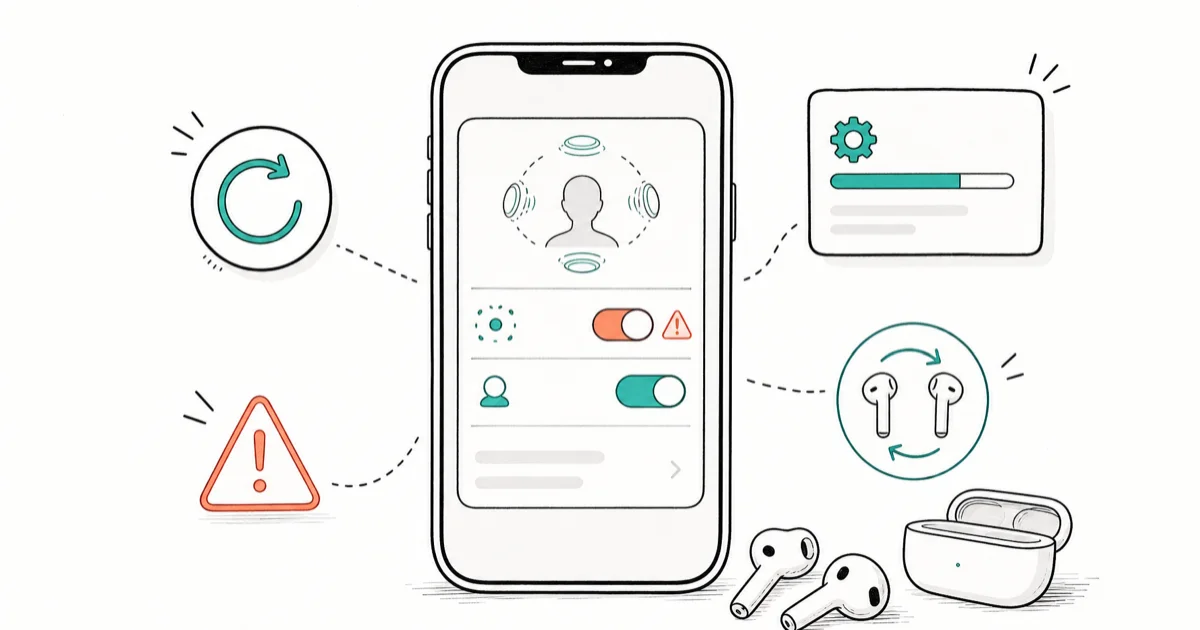
Quick AnswerPlay supported content, open Control Center, long-press volume, and choose Fixed or Head Tracked. If the control is missing, update the device and AirPods firmware, then re-pair.
Spatial Audio can make supported music and video sound as if it comes from around you, with an optional head-tracking mode. If the control is missing or playback stays in stereo, check compatibility and the current setting before resetting anything.
- Spatial Audio is available on AirPods Pro models, AirPods Max, and AirPods 3 or later; AirPods 1 and 2 are not supported.
- Use a compatible Apple device with current system software, and test with content that supports Spatial Audio.
- AirPods firmware builds vary by model; compare yours with Apple’s live firmware page and update with the case closed, connected to power, and near a Wi-Fi-connected Apple device.
- If the Control Center setting is missing, update the source device and AirPods firmware before re-pairing.
- Spatial Audio is controlled per app from Control Center; choose Fixed or Head Tracked while supported content is playing.
#Spatial Audio Compatibility and Settings
Three things have to be right at once: hardware, source device, and software state.
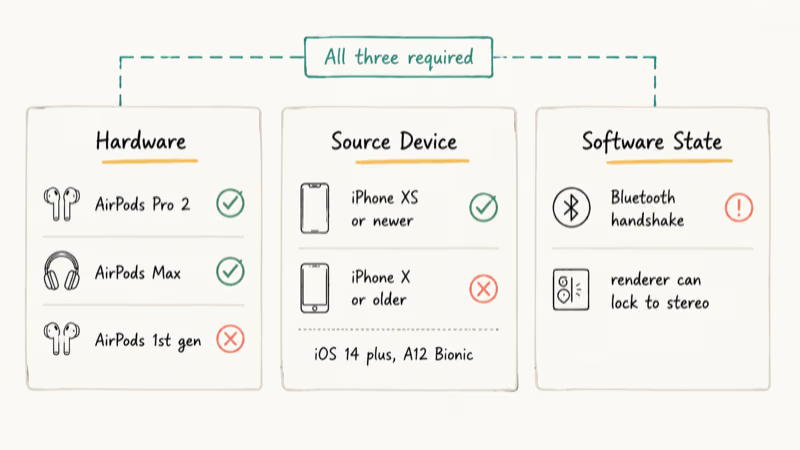
Hardware. According to Apple’s Personalized Spatial Audio guide, compatible AirPods include AirPods Pro models, AirPods Max, and AirPods 3 or later. AirPods 1 and 2 are not on the compatibility list.
Source device and content. Use a compatible Apple device with current system software. In Apple Music, look for the Dolby Atmos badge; standard stereo content won’t demonstrate the same surround effect.
Current setting. Check Off, Fixed, and Head Tracked in Control Center while supported content plays.
If you’re seeing one bud out of sync rather than no Spatial Audio at all, our guide on why one AirPod dies faster covers asymmetric drift.
#How Do You Re-Pair AirPods to Fix Spatial Audio?
Re-pair the AirPods if the compatibility, content, Control Center, and update checks have not restored the feature.
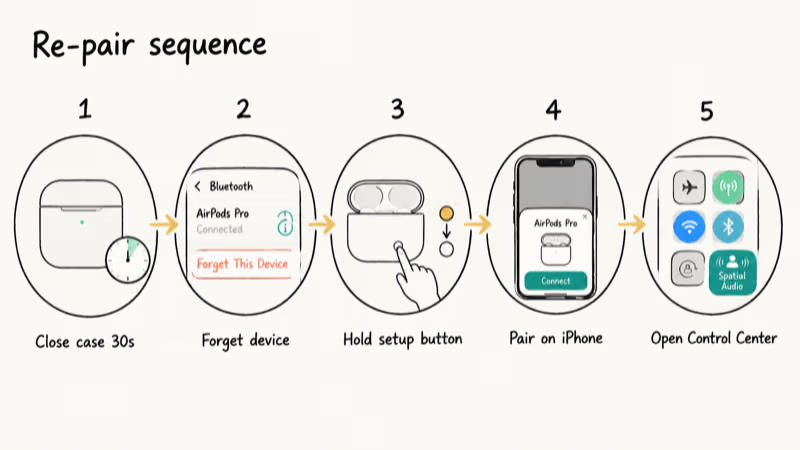
- Open
Settings>Bluetoothon your iPhone, tap the i next to your AirPods, scroll down, and tap Forget This Device. Confirm. - Put both AirPods in the case and open the lid.
- For AirPods 1, 2, or 3 and AirPods Pro 1 or 2, hold the setup button on the back for about 5 seconds, until the light flashes white. AirPods 4 and AirPods Pro 3 use a double-tap sequence on the front of the case.
- Bring the open case next to your unlocked iPhone and follow the on-screen pairing prompt. Apple’s connection guide gives the steps for each model.
- Play supported content, open Control Center, long-press the volume slider, and check the Spatial Audio control.
If the control still does not appear, verify the AirPods model and source device against Apple’s compatibility information.
If you’re also troubleshooting connection problems where the buds won’t even pair, our guide on AirPods case not charging walks through related power and Bluetooth issues.
#How to Update iOS and AirPods Firmware
Firmware updates install automatically, so your AirPods can lag behind without showing an update button. Apple’s live firmware page lists the current build for each model.
Check your firmware version:
- Pair AirPods to your iPhone.
- Open
Settings>Bluetooth, tap the i next to your AirPods, then scroll to Version. - Compare it with Apple’s current AirPods firmware page. According to Apple, firmware versions vary by model.
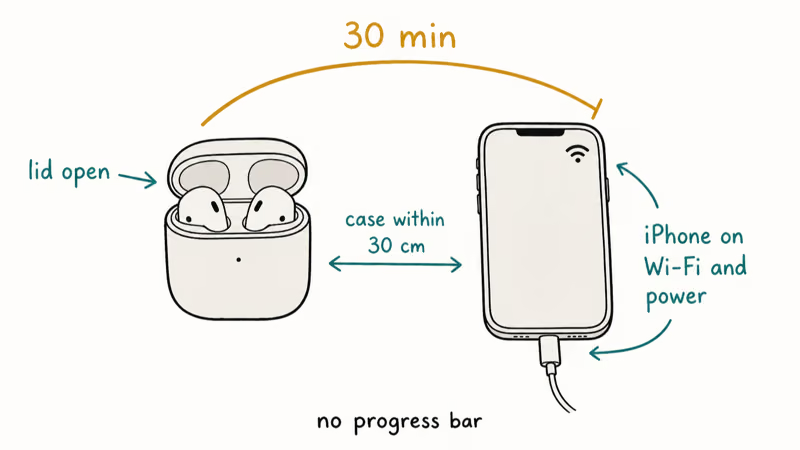
Allow the firmware update to install:
- Connect your paired iPhone, iPad, or Mac to Wi-Fi and keep the AirPods within Bluetooth range.
- Put the AirPods in the case, connect the case to power, and close the lid.
- Wait at least 30 minutes while the firmware installs in the background.
- Open the case, reconnect, and check the version number again.
Update the source device:
- Open
Settings>General>Software Update. - Download and install the latest update.
Install the current system update offered for your iPhone or iPad, then test Spatial Audio again.
While you’re updating, our iPad keeps freezing fix guide is useful if your source device is an iPad showing similar Bluetooth audio glitches.
#How Do You Check the Spatial Audio Control?
Apple lets you control Spatial Audio and head tracking separately for each supported app. Check the control while supported content is playing.
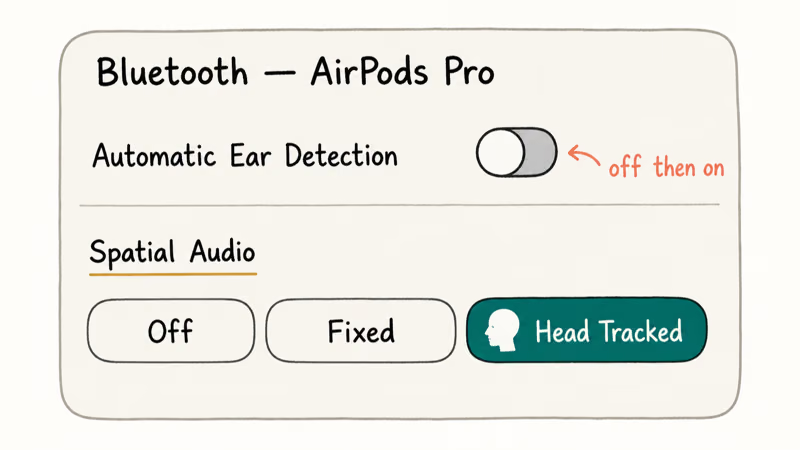
- Start supported audio or video playback.
- Open Control Center and long-press the volume slider.
- Tap Spatial Audio and select Fixed or Head Tracked.
- Return to the app and listen for the change. According to Apple’s AirPods control guide, the choice is saved for each app.
If the control is present and switching modes changes the sound, the AirPods connection is working. If the control is absent, return to the compatibility, software update, and re-pair checks.
#How to Reset AirPods to Factory Defaults
A factory reset clears the AirPods pairing. Use it after the compatibility, control, update, and re-pair checks.
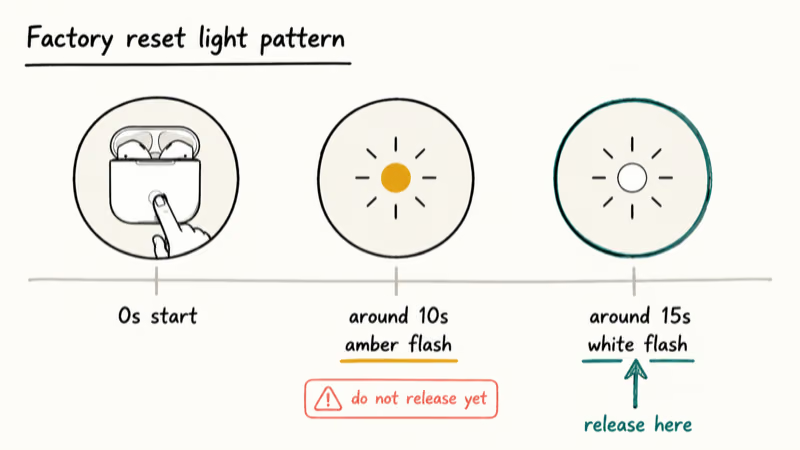
- For AirPods 1, 2, or 3 and AirPods Pro 1 or 2, put both AirPods in the case and close the lid for 30 seconds.
- Open the lid, then press and hold the setup button on the back for about 15 seconds, until the light flashes amber and then white.
- AirPods 4 and AirPods Pro 3 use three double taps on the front of the case instead of the rear-button sequence.
- Follow Apple’s model-specific reset guide, then pair the AirPods again.
After pairing again, play supported content and check Off, Fixed, and Head Tracked in Control Center.
If your buds are stuck in a state where they won’t even appear in Bluetooth, the Find My AirPods sound pending fix covers that recovery path before you get to a reset.
#When to Contact Apple Support
Contact Apple if a compatible AirPods model still lacks the Spatial Audio control after you update both devices, re-pair, and reset using the model-specific steps. Tell support which AirPods model, source device, system version, and app you tested.
#Bottom Line
Start with compatibility, supported content, and the per-app Control Center setting. Then install current device and AirPods firmware, re-pair, and reset only if the earlier checks fail. If a compatible model still lacks the control after those steps, contact Apple Support rather than running an undocumented system repair.
#Frequently Asked Questions
Does Spatial Audio work with all AirPods models?
No. Apple’s current compatibility list includes AirPods Pro models, AirPods Max, and AirPods 3 or later. AirPods 1 and 2 are not supported.
What iPhone models support Spatial Audio?
Compatibility depends on the AirPods feature and source device. For Personalized Spatial Audio, Apple currently requires an iPhone with a TrueDepth camera and current software; Apple’s compatibility guide lists the other devices that can use the resulting profile.
Why is the Spatial Audio toggle missing from Control Center?
First connect compatible AirPods and start supported content in the app you want to use. Then open Control Center and long-press the volume slider. If the control is still absent, update both devices and re-pair the AirPods.
Does updating AirPods firmware require a Mac or PC?
No. AirPods firmware updates while the buds are in their closed, charging case and within Bluetooth range of a paired iPhone, iPad, or Mac connected to Wi-Fi. Wait at least 30 minutes, then reconnect and verify the version under Settings > Bluetooth > Info > About.
Will a factory reset delete my personalized Spatial Audio profile?
Apple’s AirPods reset guide doesn’t say that a reset deletes the profile. Apple documents Personalized Spatial Audio separately and says the profile can sync across supported devices signed in to the same Apple Account. If the profile is unavailable after pairing, set it up again under Settings > [Your AirPods] > Personalized Spatial Audio.
Why does Spatial Audio drop out during phone calls?
Spatial Audio is a supported-media playback feature, not an ordinary phone-call mode. If AirPods audio or the microphone also fails during calls, use our AirPod mic not working checks for that separate issue.
Can I use Spatial Audio with non-Apple apps like YouTube or Netflix?
It can work in supported third-party apps and content. Open Control Center while the content is playing to see whether that app offers Fixed or Head Tracked mode.
How do I check if a song actually has Dolby Atmos?
In Apple Music, open the track and look for the Dolby Atmos badge. Apple’s Spatial Audio with Dolby Atmos guide explains the compatible devices and the Automatic, Always On, and Off settings.

Mac mini M6 vs M5 Pro: Which Model Should You Buy?
Mac mini M6 vs M5 Pro compared on price, memory, ports, displays, and real workloads. Find the better 2026 Mac mini for your desk and budget.

Apple Siri Settlement: Who Qualifies and How to Claim
Apple's $250 million Siri settlement covers iPhone 15 Pro and iPhone 16 models bought June 2024 to March 2025. See who qualifies and how claims work.

iOS 26.6.1 Security Update: What Apple Fixed and Who Gets It
Apple released iOS 26.6.1 on August 17 with 29 security fixes, including an IPSec interception bug. See what it patches, who gets it, and how to update.

iPhone Adaptive Power: How It Works and When to Use It
Learn how iPhone Adaptive Power works, which models support it, what it changes, and when Low Power Mode is still the better battery-saving choice.