iPhone Is Disabled: How to Unlock and Prevent It in 2026
iPhone unavailable after wrong passcodes? Try the 72-hour previous-passcode window first, then compare on-device, Find My, and computer resets.
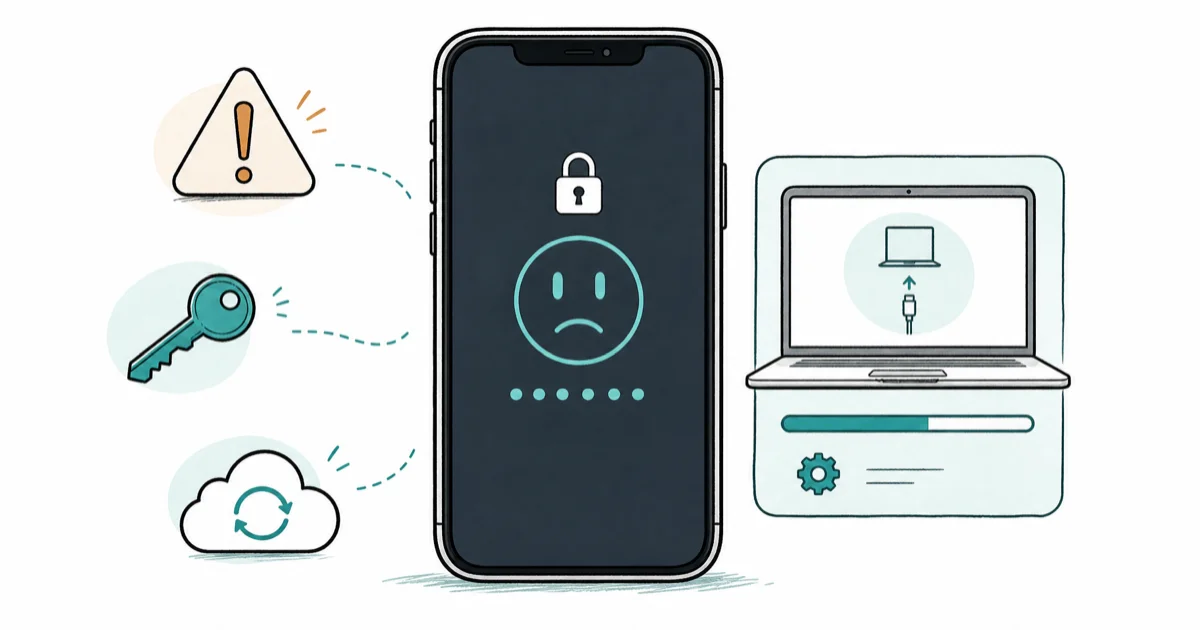
Quick AnswerOn iOS 17 or later, first try the previous passcode if you changed it within 72 hours. If that option is unavailable, an on-device, Find My, or computer reset will erase current device data.
An “iPhone is disabled,” “iPhone Unavailable,” or “Security Lockout” screen means iOS is delaying or blocking device-passcode attempts. If you changed the passcode within the last 72 hours, try Apple’s data-preserving Previous Passcode route before any reset.
Use these steps only on an iPhone you own or have explicit permission to reset. Accessing or erasing someone else’s phone without consent can violate privacy and computer-access laws.
- On iOS 17 or later, the previous passcode can work for 72 hours after a passcode change unless that option was expired early.
- Previous Passcode requires the locked iPhone to be online, signed in to an Apple Account, and set up with Find My.
- An eligible iPhone on iOS 15.2 or later can erase itself from the Lock Screen without a computer.
- On-device reset, Find My erase, and computer reset all remove current device data; they’re not data-preserving unlocks.
- Activation Lock can remain after an erase, so have the Apple Account credentials tied to the iPhone before resetting it.
#Why Does an iPhone Get Disabled?
According to Apple’s Platform Security guide, iOS adds longer delays after invalid device passcodes. The current table shows 1 minute after the fourth invalid attempt, then 5 minutes, 15 minutes, 1 hour, 3 hours, and 8 hours. At 10 or more attempts, the device is locked and needs a Mac or PC unless another supported reset route is available.
Apple documents a separate Erase Data setting under Face ID & Passcode or Touch ID & Passcode. When that setting is on, 10 consecutive incorrect device-passcode attempts remove all content and settings. Repeating the same incorrect code does not count again toward that limit.
Stop guessing once a delay appears. Waiting lets the displayed timer finish; it won’t reveal the passcode.
#Can You Use the Previous Passcode Within 72 Hours?
Yes. Apple’s Passcode Reset instructions state that iOS 17 and later keeps the previous passcode available for 72 hours after you change it. Unlocking this way immediately prompts you to set another passcode and does not erase the iPhone.
Try this route first:
- Enter an incorrect passcode until iPhone Unavailable appears. Apple says the option becomes available after five incorrect attempts.
- Tap Forgot Passcode? in the bottom corner.
- Tap Enter Previous Passcode. Apple’s screenshot labels this branch Try Passcode Reset, so follow either wording if it appears.
- Enter the old passcode, then follow the prompts to set a new one immediately.
This route has conditions. The iPhone must run iOS 17 or later, still be inside the 72-hour window, and have the previous code available. Apple also says Forgot Passcode? appears when the locked device has cellular or Wi-Fi access, is signed in to an Apple Account, and has Find My turned on.
If the option does not appear, don’t keep entering old codes. Move to the on-device reset only if you accept that the next route erases the iPhone.
#Reset an iPhone Without a Computer
Apple’s on-device reset guide puts this route after Passcode Reset. It requires iOS 15.2 or later, Find My enabled before the lockout, an active cellular or Wi-Fi connection, and the Apple Account and password used on the device.
The button depends on the iOS version:
- On iOS 17 or later, tap Forgot Passcode?, then Start iPhone Reset.
- On iOS 15.2 or iOS 16, tap Erase iPhone on the unavailable or Security Lockout screen.
- Enter the Apple Account password to sign out on the device.
- Tap Erase iPhone to delete its data and settings. With an eSIM on iOS 17 or later, the screen may let you keep or delete the eSIM while erasing the data.
- When the Hello screen appears, set up the iPhone and choose a usable backup if one exists.
The reset button needs an active network connection. Apple’s earlier wording for this flow warned that a Security Lockout device may not rejoin Wi-Fi after a restart until it’s unlocked; a cellular model can reconnect when service is active. If you already restarted and have no working cellular connection, use the computer reset below.
This is still an erase. A backup returns only what it contains, and separately synced iCloud data can download after sign-in. Photos, messages, app data, or files that existed only on the locked iPhone don’t come back through Apple’s consumer reset routes.
For a closer comparison of the same requirements, see our iPhone reset without a computer guide.
#Erase the iPhone Through Find My
Find My is another no-computer erase route when it was enabled before the lockout. Apple’s Find My erase guide confirms that an offline erase starts the next time the device connects and that Activation Lock remains after the erase.
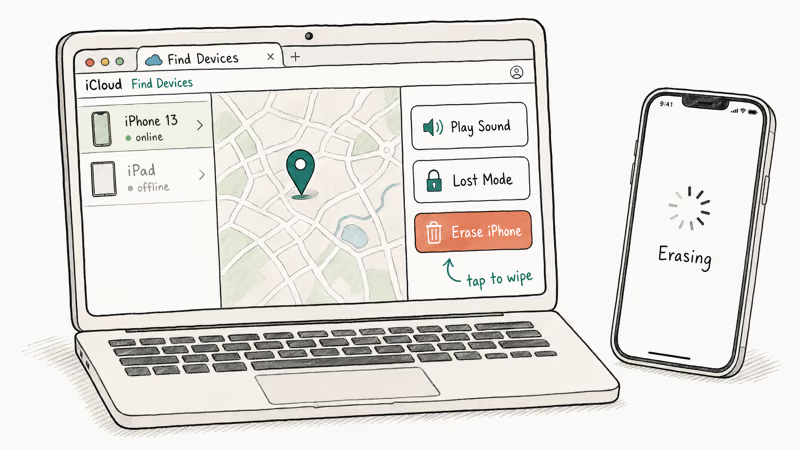
- On another Apple device, open
Find My>Devicesand select the iPhone. From a browser, sign in at iCloud.com/find and select it there. - Choose Erase This Device or Erase iPhone, then confirm with the associated Apple Account password.
- If the iPhone is offline, leave the request pending. The erase starts when the phone next reaches Wi-Fi or cellular.
- After the Hello screen appears, sign in to satisfy Activation Lock and restore an available backup if you have one.
Don’t choose Remove This Device as a substitute for erasing a locked iPhone you still own. Removing it from Find My has a different effect on Activation Lock.
If the account password is the problem, resolve that before starting another erase. Our Apple Account verification guide covers that separate recovery branch.
#Reset the iPhone With a Computer
Use a computer only after Previous Passcode and the on-device reset are unavailable. Apple’s current computer-reset guide requires a Mac or Windows PC, a charging-capable cable, an internet connection, and up to 60 minutes. Apple states that this process erases the data currently on the iPhone.
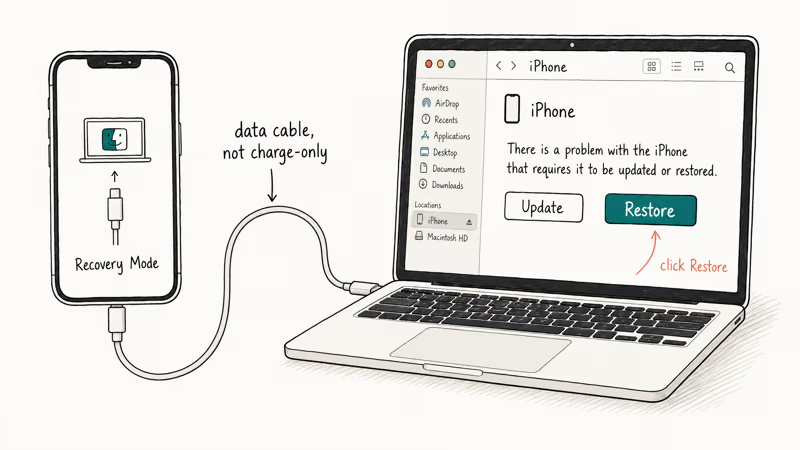
- Turn off the iPhone. On a Face ID model, hold the Side and Volume Down buttons until the power slider appears. On a Home-button model, hold the top or Side button, then drag the slider.
- Connect the cable to the Mac or Windows PC, but not yet to the iPhone.
- Connect the iPhone while holding its Recovery Mode button. Keep holding until the computer-and-cable screen appears:
- Face ID models, iPhone 8 or later, and iPhone SE (2nd or 3rd generation): hold the Side button.
- iPhone 7 or 7 Plus: hold Volume Down.
- iPhone 6s or earlier, or iPhone SE (1st generation): hold the Home button.
- On a Mac, open Finder and select the iPhone under Locations. On Windows, open Apple Devices and select the iPhone.
- Select Restore and follow the prompts.
- If the download takes more than 15 minutes and the iPhone exits Recovery Mode, let the download finish, turn off the iPhone, and enter Recovery Mode again.
- When the Hello screen appears, set up the iPhone and restore a backup only if you recognize its device and date.
If the buttons don’t respond or the recovery screen never appears, Apple says the iPhone may need service.
Our Recovery Mode troubleshooting guide covers cable and restore errors after the official steps have been tried.
#Paid Unlock Tool Promises and Risks
Data-preservation promises are a warning sign.
Avoid any product that claims it can reveal the passcode, keep unsynced local data through a required reset, or activate someone else’s iPhone. Use the official routes first and resolve an Apple Account lock as a separate problem.
#How to Reduce the Risk of Another Lockout
Use a memorable passcode. Under Settings > your name > iCloud > iCloud Backup, verify the latest backup date.
Review Erase Data deliberately. Leave it enabled only if you accept its documented result after 10 consecutive wrong device-passcode attempts. Face ID or Touch ID can reduce routine passcode entry, but iOS still requires the code for restarts and other security-sensitive actions.
When you change the device code, record it securely before locking the screen. Our iPhone passcode reset guide explains the difference between changing a known code and recovering from a forgotten one.
#Bottom Line
If you changed the passcode within 72 hours on iOS 17 or later, tap Forgot Passcode? and use the previous code first. If that route is unavailable, try the no-computer reset only when its Find My, network, and Apple Account requirements are met. Use Finder or Apple Devices last.
Every route after Previous Passcode erases current device data. Check for a real backup before crossing that line.
#Frequently Asked Questions
Can I unlock a disabled iPhone without losing data?
Sometimes. Apple’s 72-hour Previous Passcode route on iOS 17 or later does not erase the iPhone. The on-device, Find My, and computer reset routes do.
Why don’t I see Enter Previous Passcode?
The iPhone may be outside the 72-hour window, running an older iOS version, offline, signed out, or missing Find My setup. Apple may also label the branch Try Passcode Reset instead.
Can I reset the iPhone without a computer?
Yes, on iOS 15.2 or later when the iPhone is online, Find My was already enabled, and you know the associated Apple Account password. This route erases current device data.
What happens if the iPhone was restarted during Security Lockout?
A locked iPhone may not rejoin saved Wi-Fi before the first unlock. If cellular service reconnects, the on-device option can still work; otherwise, use the computer reset.
Does erasing the iPhone remove Activation Lock?
No. Find My keeps Activation Lock on after a remote erase, and setup can require the Apple Account credentials associated with the device.
How long does a computer reset take?
Apple says to allow up to 60 minutes for the reset itself. Restoring a backup afterward can take longer and depends on the backup size and connection speed.
Is DFU Mode the required next step if Recovery Mode fails?
No. Apple’s current forgotten-passcode guide directs you to service when the buttons don’t respond or the recovery screen can’t be reached. It doesn’t present a DFU timing recipe as the standard next passcode-recovery step.

Mac mini M6 vs M5 Pro: Which Model Should You Buy?
Mac mini M6 vs M5 Pro compared on price, memory, ports, displays, and real workloads. Find the better 2026 Mac mini for your desk and budget.

Apple Siri Settlement: Who Qualifies and How to Claim
Apple's $250 million Siri settlement covers iPhone 15 Pro and iPhone 16 models bought June 2024 to March 2025. See who qualifies and how claims work.

iOS 26.6.1 Security Update: What Apple Fixed and Who Gets It
Apple released iOS 26.6.1 on August 17 with 29 security fixes, including an IPSec interception bug. See what it patches, who gets it, and how to update.

iPhone Adaptive Power: How It Works and When to Use It
Learn how iPhone Adaptive Power works, which models support it, what it changes, and when Low Power Mode is still the better battery-saving choice.