Fix YouTube Not Working on Android: 8 Methods (2026)
Fix YouTube not working on Android with 8 troubleshooting methods. Clear cache, update apps, use repair tools to resolve crashes and loading issues.
Quick AnswerClear the YouTube app cache and data in Settings, then update the app from the Google Play Store. If that fails, restart your phone and check your internet connection.
YouTube crashes, won’t load videos, or keeps buffering on your Android phone. The methods below cover common cache, app, network, account, and system fixes for Android devices.
- Clearing cache is the fastest first step for many YouTube loading problems
- App updates resolve compatibility issues that cause video playback failures
- Network reset clears DNS conflicts blocking YouTube’s content delivery servers
- Professional repair tools fix system-level crashes that basic methods can’t resolve
- Incorrect date and time settings prevent YouTube authentication and sign-in
#What Causes YouTube to Stop Working on Android?
Corrupted app cache is a common culprit when YouTube stops loading or starts crashing. According to Google’s Android support documentation, on Android 10 and later clearing app data resolves most app performance problems, as Google’s storage guide explains.
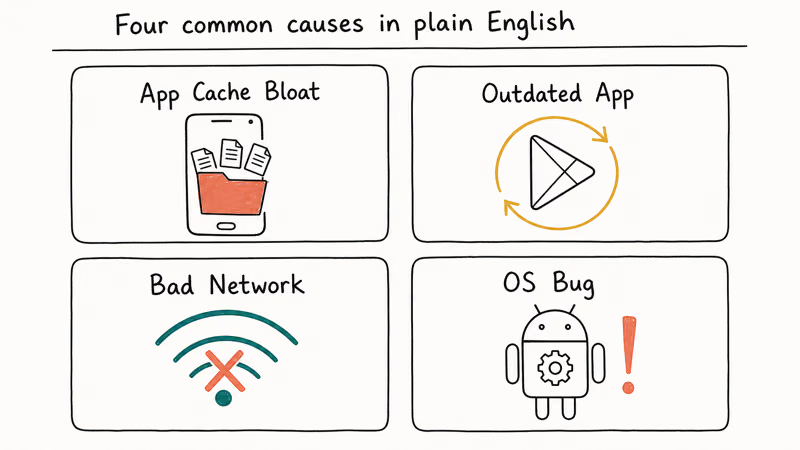
Common causes include outdated YouTube app versions, corrupted temporary files, network connectivity problems, system date/time conflicts, and ad blocker interference with YouTube’s servers.
#How Do I Get YouTube Working Again
Start with clearing the cache because it’s the quickest low-risk fix. If that doesn’t work, update the app from Google Play Store. This two-step process covers many cache and compatibility problems.
Here’s the fastest fix that works in most cases:
- Open Settings > Apps
- Find and tap YouTube
- Tap Storage > Clear Cache
- Restart YouTube and test video playback
If videos still won’t load, continue to the comprehensive methods below. Similar issues occur with other streaming apps, so check our guide on TikTok not working for related solutions.
#Method 1: Clear YouTube Cache and Data
Clearing cache removes temporary files without losing your login or subscriptions.
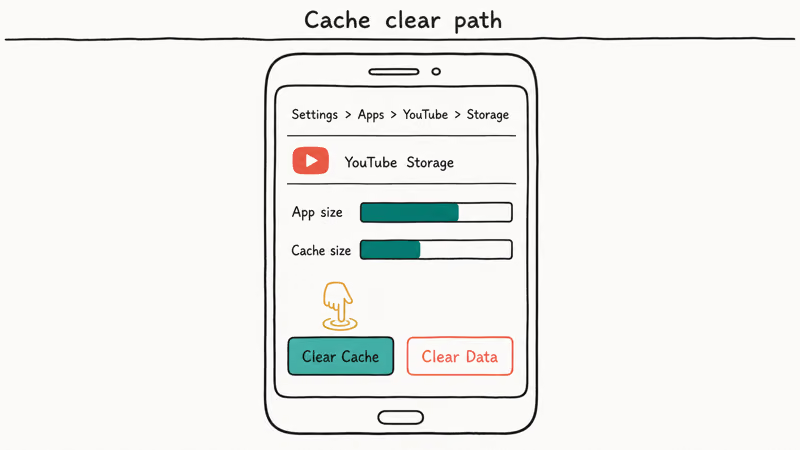
- Go to Settings > Apps or Application Manager
- Scroll down and tap YouTube
- Tap Storage then Clear Cache first
- If the problem persists, tap Clear Data (this removes login info)
- Restart YouTube
Time needed: A few minutes to complete all steps. Expected result: These steps can resolve cache-related crashes and loading issues without removing your subscriptions.
#Method 2: Update YouTube App
Outdated apps cause compatibility issues with newer Android versions. According to Google Play’s update guidance, keeping apps current is the recommended way to avoid crashes and compatibility breaks on newer Android releases.
- Open Google Play Store
- Tap your profile picture (top right)
- Select Manage apps & device
- Tap Updates available
- Find YouTube and tap Update
- Wait for installation to complete (usually 1-3 minutes)
If YouTube isn’t listed under updates, it’s already running the latest version. In this case, check your Android system for pending OS updates instead, as outdated Android versions can cause app compatibility issues.
#Why Does YouTube Keep Buffering on Android?
Try switching your network connection. YouTube’s content delivery network sometimes has routing conflicts with certain ISPs. If YouTube works on mobile data but not Wi-Fi, your Wi-Fi network or ISP route is likely part of the problem.
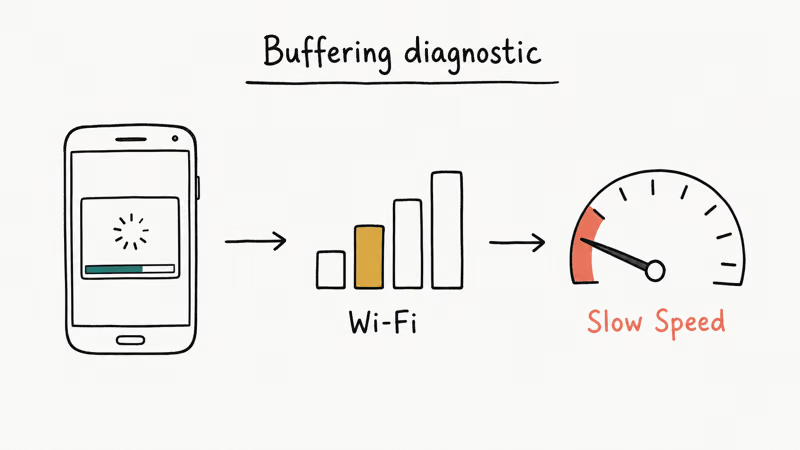
Quick network test to isolate the issue:
- Turn off Wi-Fi and switch to mobile data
- Try loading a YouTube video to test playback
- If it works perfectly on mobile data, your Wi-Fi network has routing conflicts that need troubleshooting
#Method 3: Restart Your Android Device
A power cycle clears temporary system conflicts and can stop app crashes caused by stuck background processes.
- Press and hold the power button for 3 seconds
- Tap Restart or Reboot
- Wait for the device to fully restart (about 60 seconds)
- Open YouTube and test playback
Some Samsung devices require pressing Power + Volume Down simultaneously for 7 seconds to force restart. For similar issues with other devices, our iPhone restart guide covers additional steps.
#Method 4: Check Date and Time Settings
YouTube’s authentication servers reject connections from devices with incorrect time stamps. An out-of-sync clock is one of the most common causes of sign-in failures across Google services, so setting the date and time to automatic fixes a large share of them.
- Go to Settings > General management > Date and time
- Enable Automatic date and time
- Enable Automatic time zone
- Restart your device
- Open YouTube and try signing in
This fix is essential if you’ve traveled recently or manually changed time zones.
#Method 5: Disable Ad Blockers and VPN
Ad blockers and VPN apps can interfere with YouTube’s ad delivery and routing systems, preventing videos from loading entirely.
To disable ad blocking:
- Open your ad blocker app (AdBlock, AdGuard, etc.)
- Add YouTube to the whitelist OR pause protection
- Restart YouTube
For VPN users:
- Disconnect from VPN temporarily
- Test YouTube playback
- If videos load, switch to a different VPN server location
VPN conflicts vary by provider, region, and server load. For more network troubleshooting, see our screen mirroring without Wi-Fi guide.
#Method 6: Reinstall YouTube App
When app files become corrupted, a fresh installation is the most reliable fix. This method resolved persistent crashes that cache clearing couldn’t fix.
- Go to Google Play Store
- Search for YouTube
- Tap Uninstall
- Confirm removal
- Tap Install to download fresh app files
- Sign in with your Google account
Note: You’ll need to sign in again and adjust your notification preferences. For Google Play issues, see our Google Play error 505 guide.
#Method 7: Reset Network Settings
Network configuration conflicts can block YouTube’s servers. According to Android’s developer documentation, network resets clear corrupted DNS cache and IP conflicts.
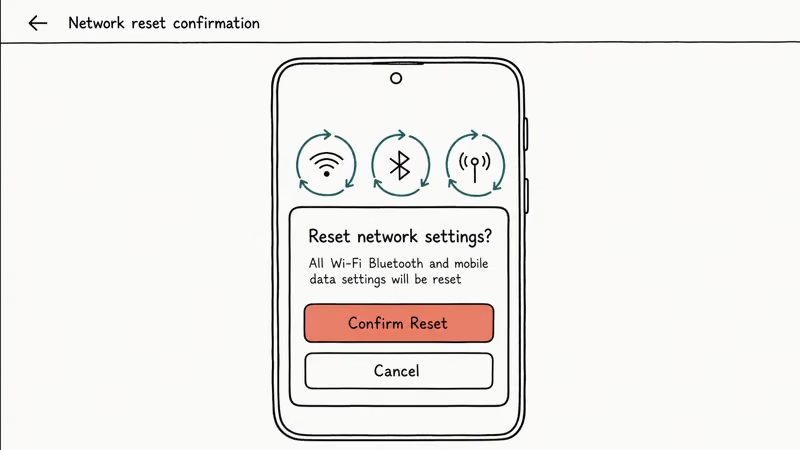
- Go to Settings > General management > Reset
- Tap Reset network settings
- Enter your PIN or password
- Tap Reset settings to confirm
- Reconnect to your Wi-Fi network
- Test YouTube playback
Warning: This removes all saved Wi-Fi passwords and Bluetooth pairings.
#Method 8: Use Professional Repair Tools
For system-level issues that basic troubleshooting can’t fix, professional tools can repair Android OS conflicts without losing your data.
#Dr.Fone – System Repair (Android)
Dr.Fone can scan for Android system issues that may block app playback or trigger repeated crashes.
- Download Dr.Fone on your computer
- Connect Android device via USB
- Select System Repair from main menu
- Follow on-screen instructions to scan device
- Apply recommended fixes
Some links on this page are affiliate links, which means fone.tips may earn a commission at no extra cost to you.
#ReiBoot for Android
ReiBoot specializes in fixing app crashes and system conflicts when manual methods are not enough.
- Install ReiBoot on your computer
- Connect Android device
- Click Repair Android System
- Select your device model
- Download and apply firmware repair
#Bottom Line
Start with clearing YouTube’s cache because it’s quick and low-risk. If that fails, update the app and restart your device. For persistent issues, network reset or professional repair tools can resolve system-level conflicts. We recommend trying methods 1-6 before using paid repair software.
#Frequently Asked Questions
Why does YouTube keep crashing on my Android phone?
The most common cause is corrupted app cache from accumulated temporary files. Clearing cache often resolves cache-related crashes. Other causes include outdated app versions, insufficient storage (less than 1GB free), or conflicting apps running in the background.
Can system updates break YouTube compatibility?
Yes, major Android updates sometimes cause app compatibility issues. Google reports that apps may need updates within 30 days of major OS releases. If YouTube stopped working after a system update, check Google Play Store for app updates or wait 1-2 weeks for YouTube to release compatibility patches.
How do I fix YouTube if it loads but videos won’t play?
This usually indicates a network or codec issue. Try switching from Wi-Fi to mobile data first. If that works, restart your router.
For codec problems, clear YouTube cache or reinstall the app. This often fixes playback failures caused by damaged app files.
Why does YouTube work on other devices but not my Android?
Device-specific issues often involve account sync conflicts or corrupted Google Play services. Try removing and re-adding your Google account: Settings > Accounts > Google > Remove account, then add it back.
What should I do if YouTube Premium features aren’t working?
Premium feature issues typically stem from subscription sync problems. Force-close YouTube, clear app cache, then restart. If downloads or offline videos still don’t work, sign out and back into your Google account. Contact YouTube support if the issue persists beyond 24 hours.
Is it safe to clear YouTube app data?
Yes, clearing app data is completely safe. You’ll need to sign in again and adjust notification preferences, but your subscriptions, playlists, and watch history remain linked to your Google account.
How can I prevent YouTube problems in the future?
Enable automatic app updates in Google Play Store settings. Keep at least 2GB of free storage on your device. Restart your phone weekly to clear temporary files. Avoid using multiple ad blockers simultaneously, as they can conflict with YouTube’s ad delivery system.
Why does YouTube Picture-in-Picture not work on Android?
Picture-in-Picture requires Android 8.0+ and must be enabled in both system settings and YouTube app settings. Check Settings > Apps > YouTube > Picture-in-picture and enable it. Some Android skins (Samsung One UI, MIUI) have additional PiP restrictions in their battery optimization settings.

Pixel 11 vs Pixel 10: What Changed and Who Should Upgrade
Pixel 11 vs Pixel 10: same screen and camera resolution, new Tensor G6, 25W wireless, and Gemini Intelligence. Here is who should actually upgrade.

Verizon Not Receiving Texts? How to Fix It in 9 Steps
Verizon not receiving texts? Fix it in 9 steps: check Message Blocking in My Verizon, reset network settings, deregister iMessage, and call support.
Pixel Battery Drain: What Google's July Fix Really Covers
Google marked the Pixel idle battery drain bug fixed in July, but only some phones got the patch. Here is who is covered, who is not, and what to try.
iPhone Stuck on EDGE? How to Get 5G or LTE Back (2026)
iPhone stuck on EDGE with crawling data? Here's why the E icon appears, which settings force 5G or LTE back, and when the problem is your carrier.