Picture-in-Picture (PiP) is a game-changing feature that allows YouTube users to watch videos in a small, floating window while multitasking on their devices. This functionality enhances user experience by enabling seamless browsing, email checking, or social media scrolling while keeping an eye on YouTube content.
However, many users encounter frustrating issues with YouTube’s PiP functionality not working as expected. This comprehensive guide will walk you through various troubleshooting steps to resolve PiP problems and get you back to effortless multitasking.
#Checking PiP Compatibility and Settings
Before diving into troubleshooting, it’s crucial to ensure your device supports PiP and that the feature is properly enabled.
#Device Compatibility Requirements
- iOS devices: iPhone and iPad running iOS 14 or later
- Android devices: Running Android 8.0 (Oreo) or later
#Enabling PiP in Device Settings
For iOS devices:
- Go to Settings > General > Picture in Picture
- Toggle on “Start PiP Automatically“
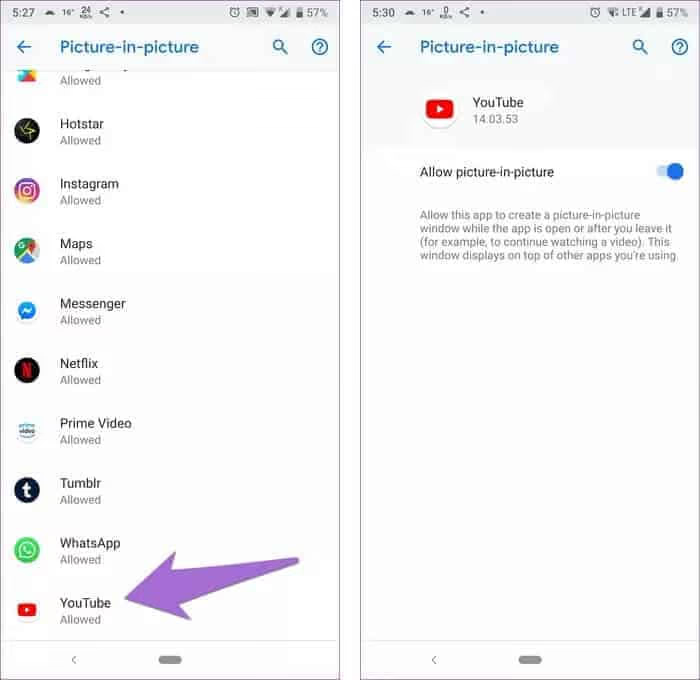
For Android devices:
- Navigate to Settings > Apps > YouTube
- Tap on “App Permissions” or “Special Access“
- Enable the Picture-in-Picture option
#Enabling PiP in YouTube App Settings
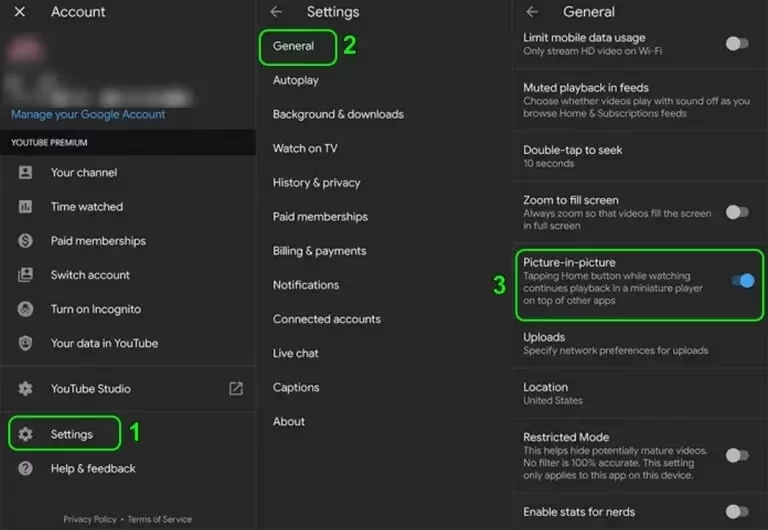
- Open the YouTube app
- Tap on your profile picture in the top right corner
- Go to Settings > General
- Enable the Picture-in-Picture option
#Troubleshooting YouTube PiP Issues
If PiP is still not working after checking compatibility and enabling the feature, try these troubleshooting steps:
#Updating the YouTube App
Outdated app versions can cause functionality issues. To update:
- Open your device’s app store (App Store for iOS, Google Play Store for Android)
- Search for YouTube
- If an update is available, tap “Update“
If you’re experiencing issues with Google Play, such as errors when checking for updates, visit our guide on fixing Google Play error checking for updates.
#Clearing YouTube App Cache and Data
Corrupted app data can interfere with PiP. To clear cache:
On Android:
- Go to Settings > Apps > YouTube > Storage
- Tap “Clear Cache” and “Clear Data“
On iOS:
- Uninstall the YouTube app
- Restart your device
- Reinstall YouTube from the App Store
#Checking and Granting Necessary App Permissions
Ensure YouTube has all required permissions:
- Go to your device’s Settings > Apps > YouTube > Permissions
- Grant necessary permissions, including “Display over other apps” for Android
#Disabling Battery Optimization for YouTube
Battery optimization can interfere with background processes:
- Go to Settings > Apps > YouTube > Battery
- Select “Don’t optimize” or “Unrestricted“
#Restarting the Device
A simple restart can often resolve minor software glitches:
- Power off your device
- Wait for 30 seconds
- Power it back on
#Advanced Solutions for PiP Problems
If basic troubleshooting doesn’t work, try these advanced solutions:

#Using YouTube in a Web Browser
PiP might work in a browser even if it’s not functioning in the app:
- Open YouTube in Chrome or Safari
- Play a video
- Exit the browser to see if PiP activates
If you’re having trouble accessing YouTube due to regional restrictions, you might want to consider using a proxy to unblock YouTube.
#VPN Considerations and Regional Availability
PiP availability can vary by region. If using a VPN:
- Try disabling the VPN
- Alternatively, connect to a US server, where PiP is widely available
#Reinstalling the YouTube App
A fresh install can resolve persistent issues:
- Uninstall the YouTube app
- Restart your device
- Reinstall YouTube from your device’s app store
#Checking for System Updates
Outdated system software can cause compatibility issues:
- Go to your device’s Settings > System > Software Update
- Install any available updates
#Device-Specific PiP Fixes
#Fixing PiP on iPhones and iPads
- Ensure YouTube Premium subscription is active (required for PiP outside the US)

- Check if restrictions are enabled in Screen Time settings
If you’re experiencing broader issues with YouTube on your iOS device, check out our guide on fixing YouTube not working on iPad or iPhone.
#Resolving PiP Issues on Android Devices
- Verify that your device supports PiP (Android 8.0 or later)
- Check if any system-level restrictions are blocking PiP
For more general YouTube issues on Android, visit our article on troubleshooting YouTube not working on Android.
#Troubleshooting PiP on Samsung Phones
- Navigate to Settings > Advanced features > Video enhancer
- Enable “Picture-in-picture” for YouTube
#When All Else Fails
If you’ve tried all the above solutions without success:

#Contacting YouTube Support
- Visit the YouTube Help Center
- Click on “Contact Us” for personalized support
#Participating in Community Forums
Engage with other users in the YouTube Help Community to share experiences and solutions.
#Submitting Feedback Through the YouTube App
- In the YouTube app, go to Settings > Help & feedback
- Select “Send feedback” to report the issue directly to YouTube
#Preventing Future PiP Issues
To maintain smooth PiP functionality:

- Keep your YouTube app and device OS updated
- Regularly clear app cache
- Be mindful of battery optimization settings
- Stay informed about YouTube feature changes and requirements
#Additional YouTube Tips
While troubleshooting PiP, you might be interested in other YouTube-related features:
- Learn how to convert YouTube videos to MP3 for offline listening
- Discover how to make a YouTube song your ringtone on Android
#Conclusion
Picture-in-Picture is a powerful feature that enhances the YouTube viewing experience. By following this comprehensive troubleshooting guide, you should be able to resolve most PiP issues and enjoy seamless multitasking while watching your favorite content.
#FAQs about YouTube Picture-in-Picture
- Q: Why is PiP not working on my iPhone? A: Ensure you have iOS 14 or later, PiP is enabled in settings, and you have a YouTube Premium subscription (if outside the US).
- Q: Do I need YouTube Premium for PiP on Android? A: In most countries, YouTube Premium is required for PiP. However, in the US, it’s available for free on most content.
- Q: Can I use PiP with music videos? A: Music videos typically require a YouTube Premium subscription for PiP, regardless of location.
- Q: Why does PiP stop when I lock my screen? A: PiP is designed to work while the device is active. Background play (with screen off) is a separate feature available to Premium subscribers.
- Q: Is PiP available on all YouTube videos? A: Most videos support PiP, but some content creators or copyright holders may disable this feature for specific videos.
- Q: What should I do if videos won’t play at all on my iPhone? A: If you’re experiencing issues with video playback, check our guide on fixing iPhone videos that won’t play.