Forgetting your laptop password can be a frustrating and potentially disastrous experience, especially when you urgently need access to important files or applications. Whether you’re using a Windows PC or a Mac, there are several methods available to help you regain access to your device. This comprehensive guide will walk you through various approaches to recover or reset your forgotten laptop password, from built-in options to third-party tools.
#1. Built-in Password Reset Options
#Windows 10 Sign-in Screen Options
If you’ve forgotten your Windows 10 password, the sign-in screen itself offers some recovery options:
- On the sign-in screen, click “I forgot my password” after entering an incorrect password.
- If you’ve set up security questions, you can answer them to reset your password.
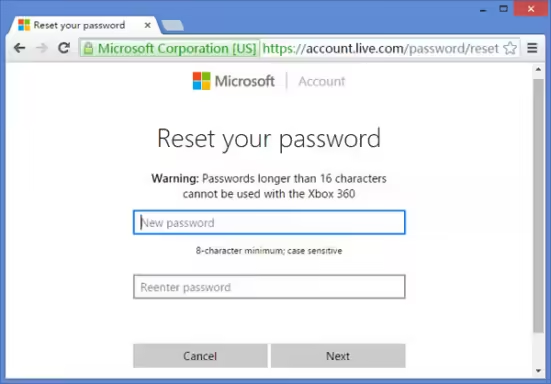
- For Microsoft accounts, you’ll be guided through an online reset process.
#Using Another Admin Account
If your laptop has another user account with administrative privileges:
- Log in to the admin account.
- Go to Control Panel > User Accounts > Manage another account.
- Select the locked account and choose “Change the password“.
For a detailed guide on how to unlock your computer without a password, check out this comprehensive tutorial.
#macOS Apple ID Reset
For Mac users, Apple provides a straightforward reset option:
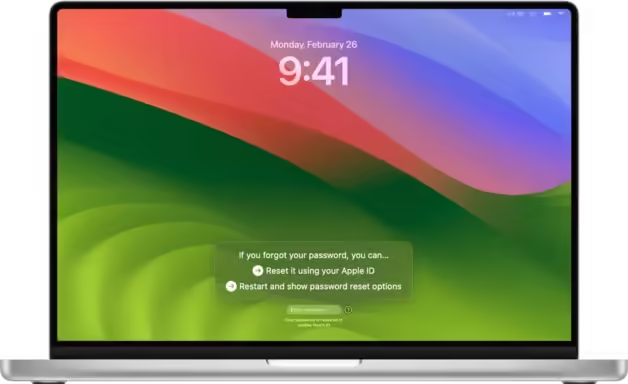
- At the login screen, enter the wrong password three times.
- Click on “Reset it using your Apple ID” when it appears.
- Enter your Apple ID credentials and follow the prompts to create a new password.
If you’re using an iPhone, you might also be interested in learning about iPhone passcode reset methods.
#macOS Recovery Mode
If the Apple ID method doesn’t work, try Recovery Mode:
- Restart your Mac and hold Command + R to enter Recovery Mode.
- Select “Utilities” > “Terminal” from the menu bar.
- Type
resetpasswordand press Enter. - Follow the on-screen instructions to reset your password.
#2. Using a Password Reset Disk
#Creating a Password Reset Disk
It’s wise to create a password reset disk before you encounter password issues:
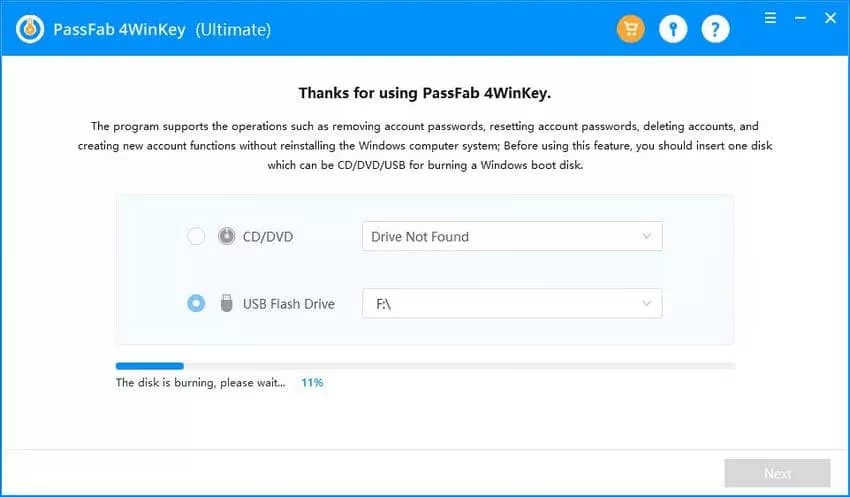
- Insert a USB drive into your Windows PC.
- Open Control Panel > User Accounts > Create a password reset disk.
- Follow the Forgotten Password Wizard instructions.
#How to Use a Password Reset Disk
If you’ve forgotten your password and have a reset disk:
- At the login screen, click “Reset password” after an incorrect attempt.
- Insert your password reset disk.
- Follow the wizard to create a new password.
#3. Safe Mode and Command Prompt Methods
#Accessing Safe Mode
Safe Mode can be a lifesaver when you’re locked out:
- Restart your PC and press F8 repeatedly before Windows loads.
- Select “Safe Mode with Command Prompt“.
#Using Command Prompt to Reset Password
Once in Safe Mode with Command Prompt:
- Type
net user [username] [new password]and press Enter. - Replace [username] with your account name and [new password] with your desired password.
This method is powerful but requires some technical knowledge. Use it cautiously to avoid unintended changes to your system. For a more detailed guide on removing Windows passwords, visit this helpful resource.
#4. Third-Party Password Recovery Tools
Several third-party tools can help recover or reset forgotten passwords:
- PassFab 4WinKey: Offers a user-friendly interface and supports various Windows versions.
- Ophcrack: An open-source tool that uses rainbow tables to crack passwords.
- AOMEI Partition Assistant: Includes a password reset feature along with other disk management tools.
When using third-party tools, always download from reputable sources to avoid malware. Be aware that some anti-virus software may flag these tools as potentially harmful due to their password-altering capabilities.
#5. Online Account Password Reset
#Microsoft Account Online Reset
If you use a Microsoft account to sign in:
- Visit the Microsoft account recovery page.
- Enter your email, phone, or Skype name associated with the account.
- Choose how you want to receive your security code and follow the prompts.
#Apple ID Online Reset
For Mac users with an Apple ID:
- Go to iforgot.apple.com.
- Enter your Apple ID and follow the account recovery steps.
#6. Factory Reset as a Last Resort
If all else fails, a factory reset will allow you to regain access, but at the cost of all data on the device:
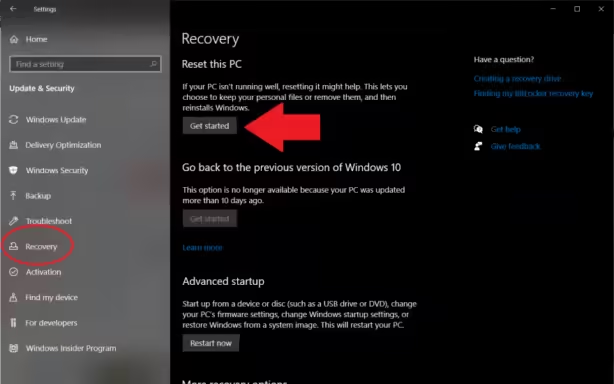
- For Windows: Use the “Reset this PC” option in Settings > Update & Security > Recovery.
- For Mac: Restart in Recovery Mode and use Disk Utility to erase the drive, then reinstall macOS.
Always attempt to backup your data before resorting to a factory reset.
#7. Prevention and Best Practices
To avoid future password issues:
- Use a password manager to securely store complex passwords.
- Set up alternative login methods like PINs or biometrics.
- Regularly update your passwords and security questions.
- Create memorable but strong passwords using passphrases.
For those who frequently work with password-protected documents, learning how to unlock password-protected Word documents or how to unprotect Excel sheets without a password can be invaluable skills.
#Key Takeaways
- Multiple options exist for resetting forgotten laptop passwords, from built-in tools to third-party software.
- Always start with the least invasive methods before moving to more drastic measures.
- Creating a password reset disk for Windows or utilizing Apple ID recovery for Macs can save time and stress.
- Preventive measures like using password managers and setting up alternative login methods are crucial.
#FAQ Section
Q: Can I reset my laptop password without losing data? A: Yes, methods like using a password reset disk or built-in reset options typically don’t cause data loss. However, a factory reset will erase all data.
Q: What if I don’t have an admin account or password reset disk? A: You can try Safe Mode with Command Prompt or third-party tools. As a last resort, a factory reset will work but will erase your data.
Q: Is it safe to use third-party password recovery tools? A: While many are safe, always download from reputable sources and be cautious as some may be flagged by antivirus software.
Q: How can I prevent forgetting my password in the future? A: Use a password manager, create memorable but strong passphrases, and set up alternative login methods like biometrics.
Q: Can I reset my password if my laptop is encrypted? A: For encrypted laptops, you’ll need the recovery key. For BitLocker on Windows or FileVault on Mac, this key is crucial for regaining access.
By following this guide, you should be able to regain access to your laptop even if you’ve forgotten the password. Remember, prevention is key – always have a backup plan and use strong, memorable passwords to avoid future lockouts.
Lastly, if you’re in the market for a new laptop, particularly for specialized software, you might be interested in our guide on the best laptops for Revit.